
LMS integration via LTI 1.3
Practise with an AI avatar directly from your course
Add an AI avatar conversation to your course alongside videos, learning materials and quizzes. Participants launch the simulation from their course.
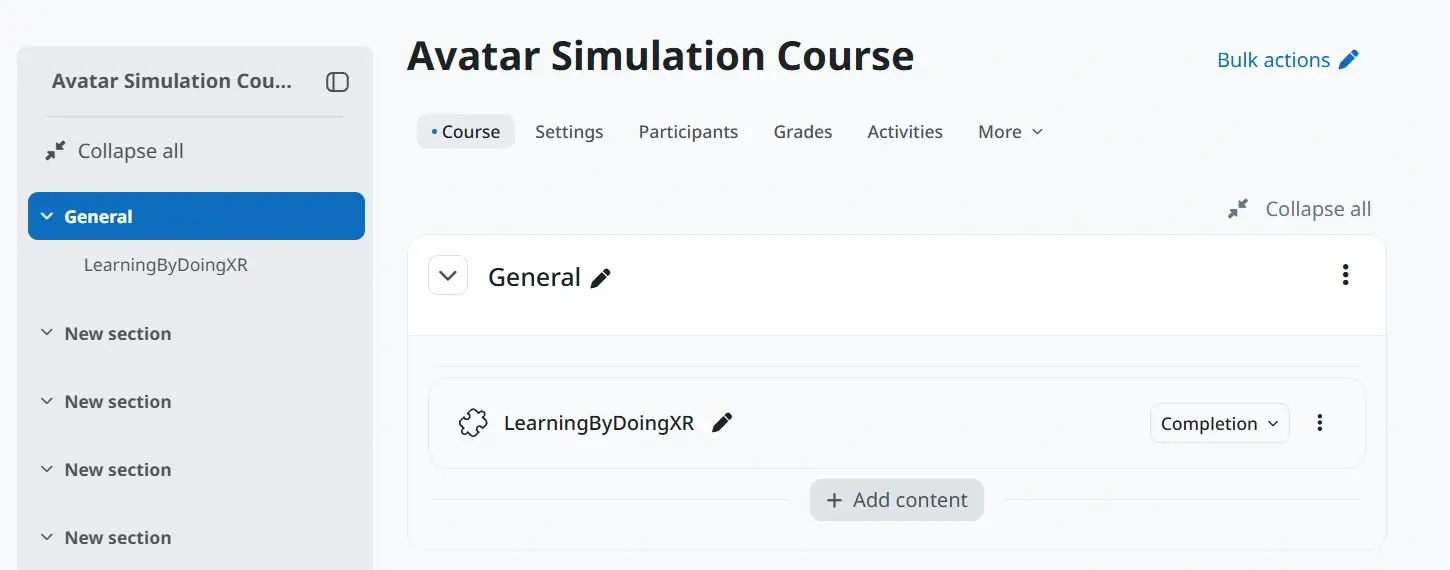
The instructor chooses a scenario
In the Moodle activity settings, the instructor opens the LearningByDoingXR catalogue and selects a simulation. The briefing sets out the participant’s role, the situation and the objective of the conversation.
In this example, the participant plays a team leader and meets Alex to give feedback after a difficult meeting.
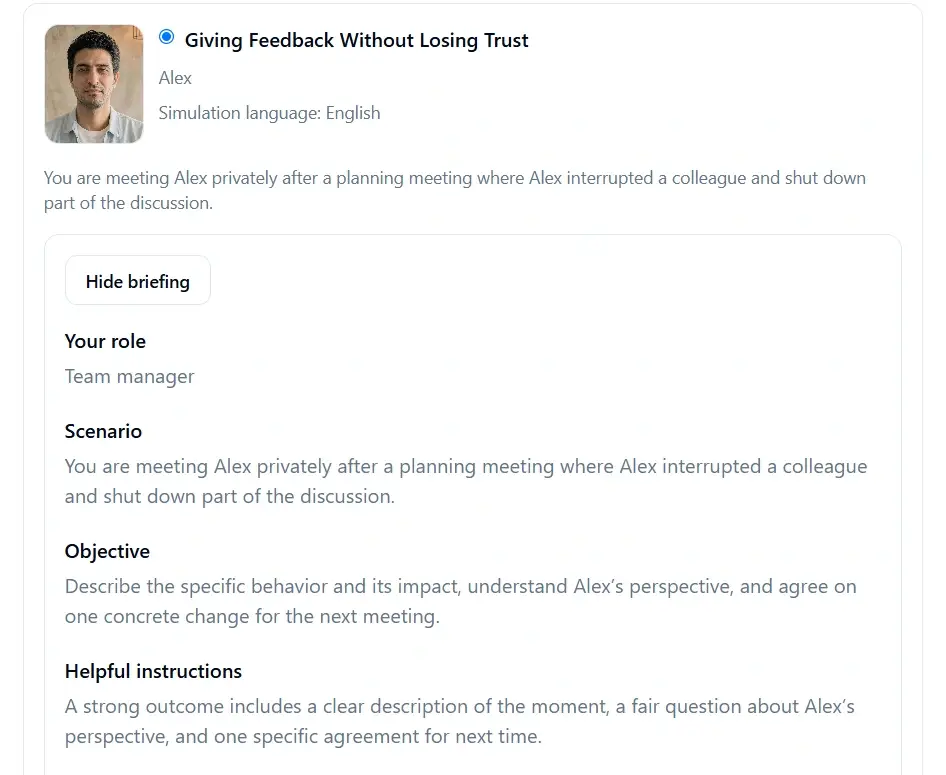
Participants practise from their course
Participants open the Moodle activity, read the briefing and start the simulation. They use their microphone to speak with Alex in the browser, practising how to explain the impact of his behaviour, hear his perspective and agree on a next step.
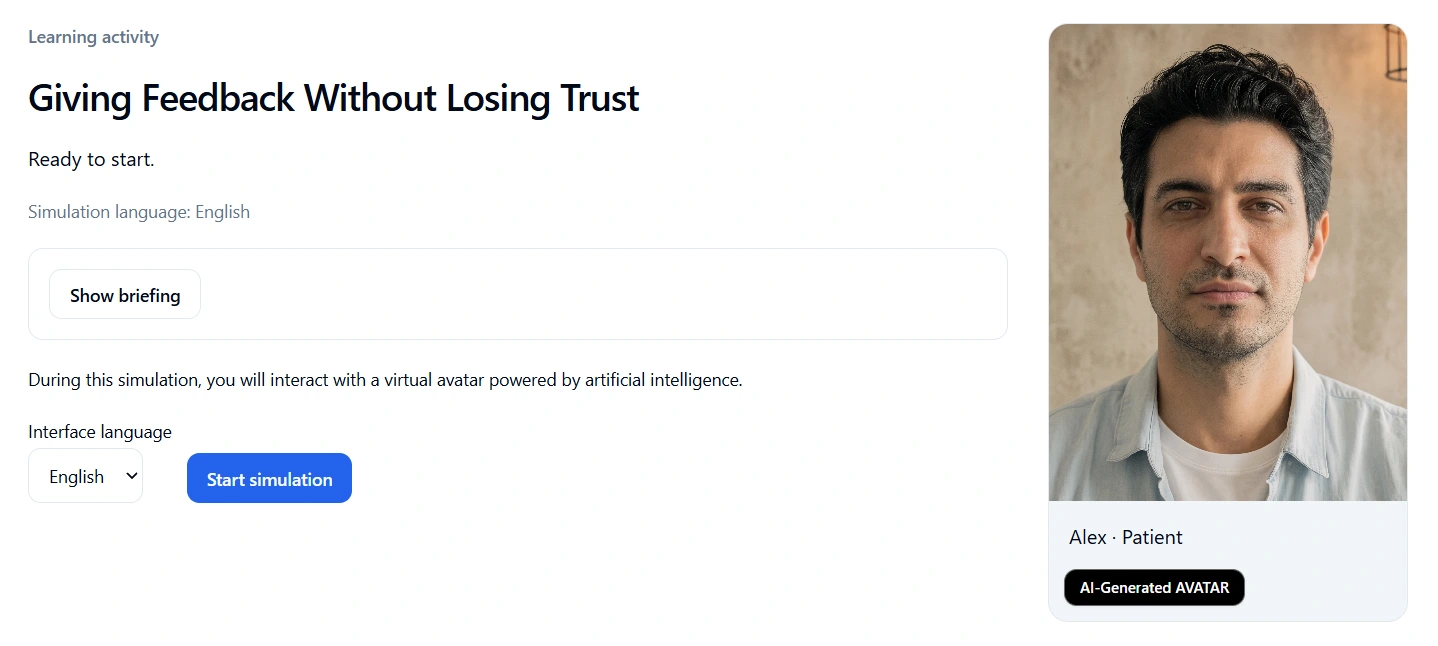

From practice to debriefing
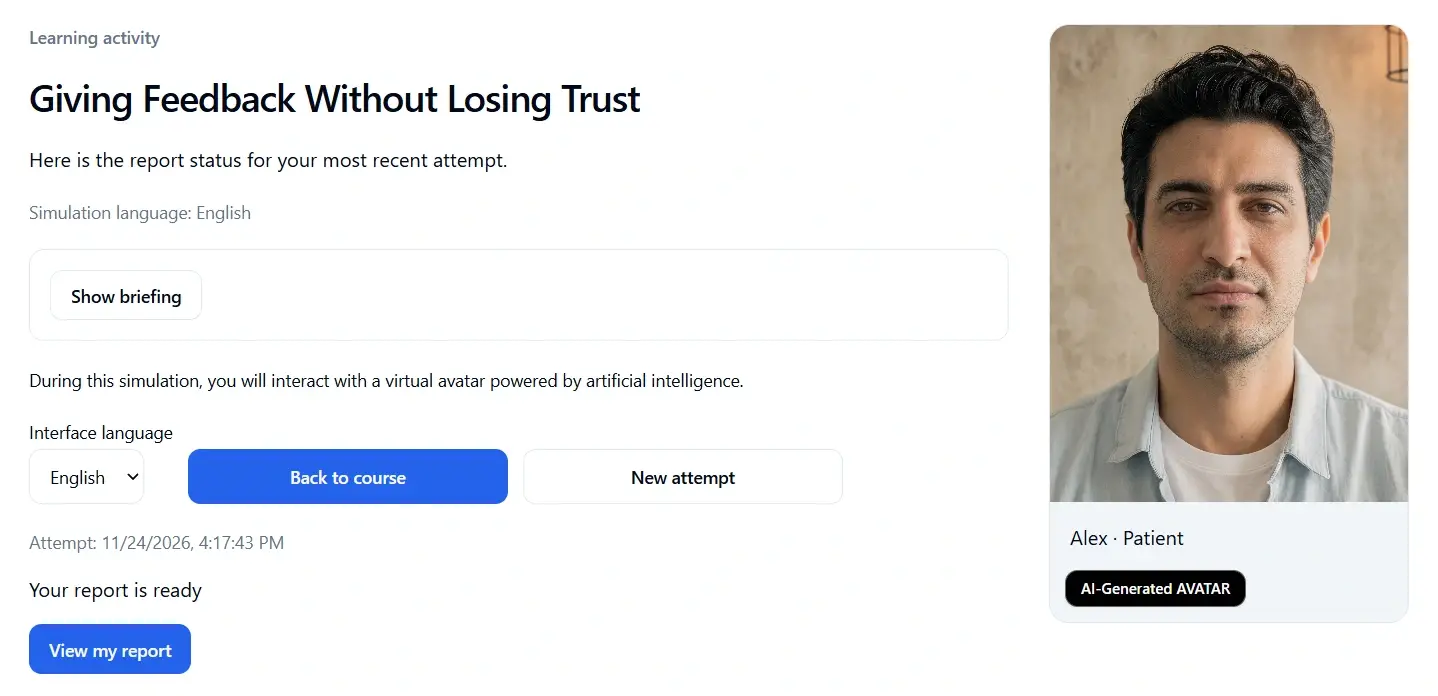
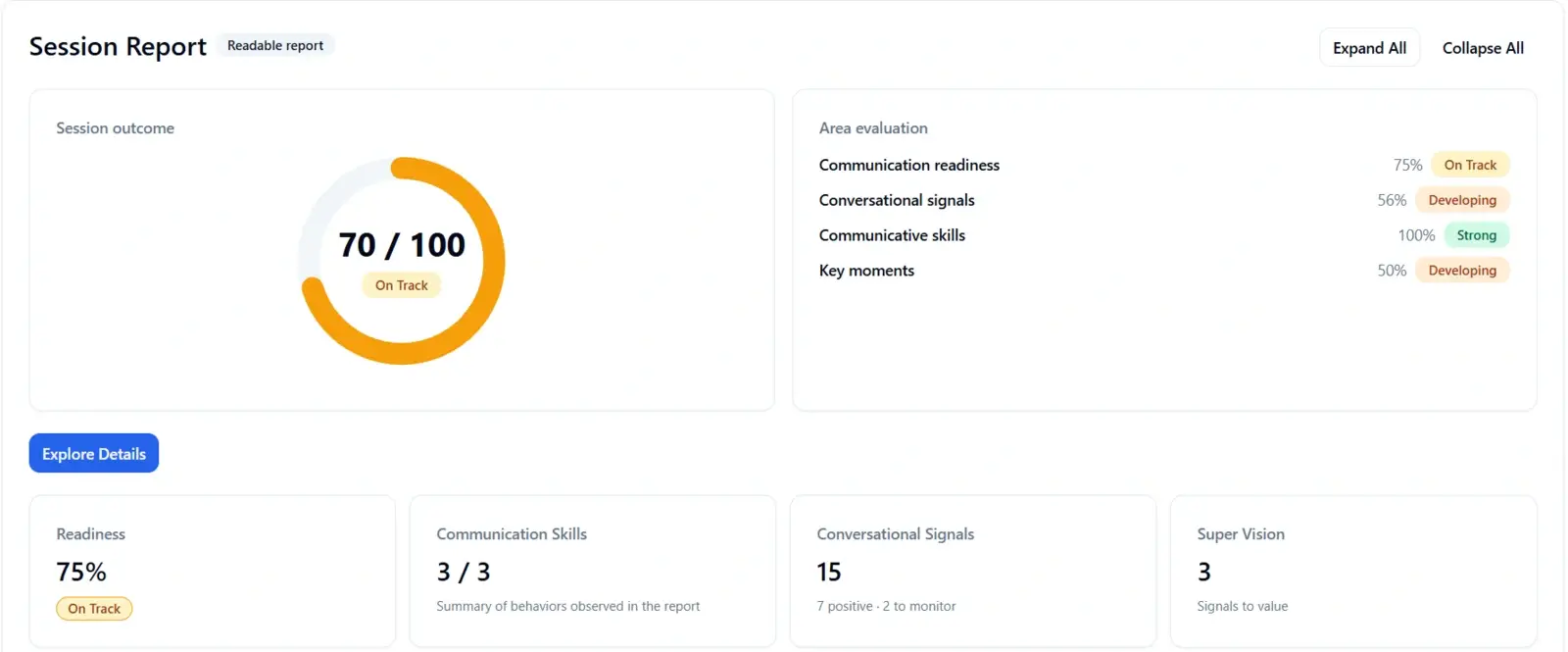
After the simulation, participants can return to the course or try again. Once the report is ready, they can open it from the activity screen. It highlights skills observed, conversational signals and key moments to revisit in the debrief.
Gradebook and activity completion
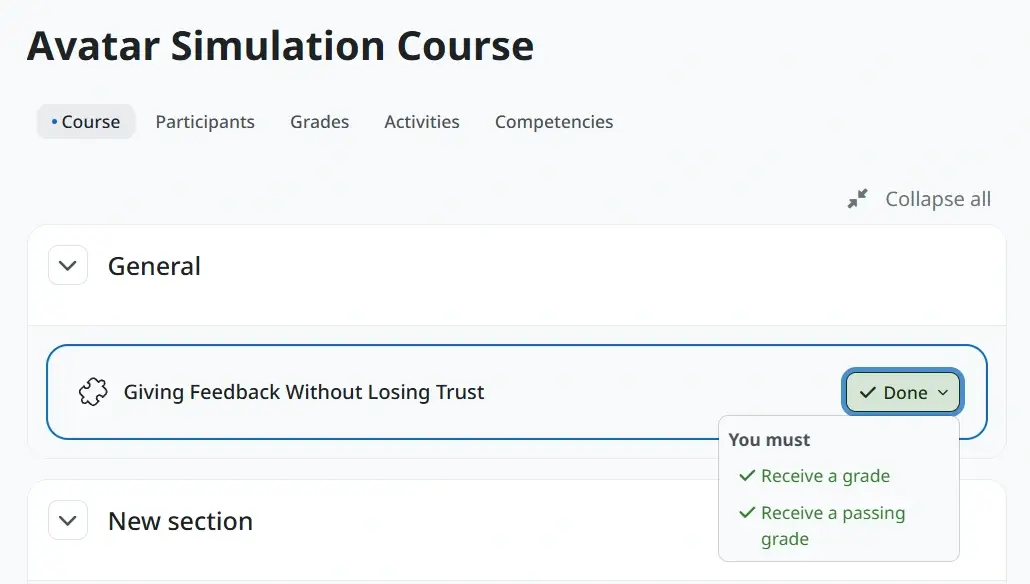
If the LMS supports LTI Assignment and Grade Services (AGS) and grade passback is enabled, the result can be sent to the course gradebook. Moodle applies the completion criteria set by the instructor, such as receiving a grade and achieving a passing score.

How to connect your LMS
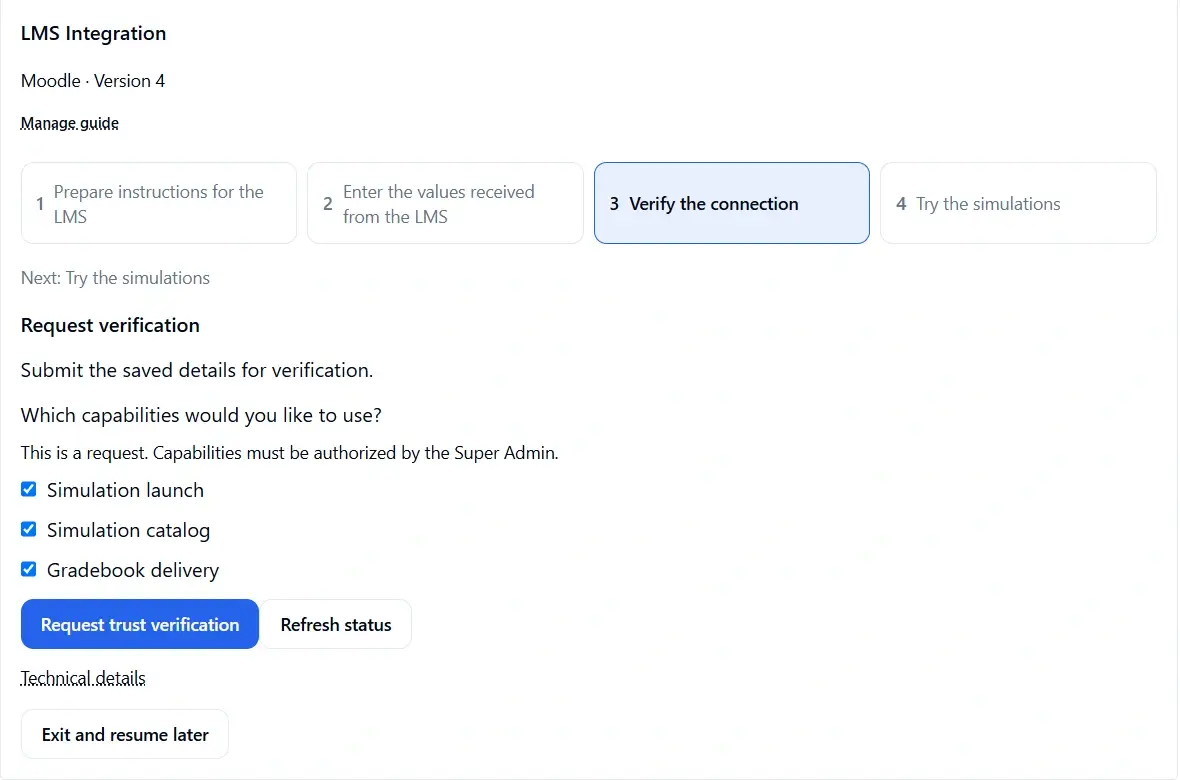
The guide takes administrators through LTI 1.3 setup, from exchanging connection details to verifying the connection and running an initial test. Simulation launch, catalogue access and grade passback depend on the features your LMS supports and which ones are enabled for the integration.
See the connection verification screen
See how to add a simulation to your LMS
In the demo, we’ll show you how to add a simulation to a course and explore the options your platform supports.

