
What this section is for #
The Audit section allows the Tenant Admin to consult the history of events recorded by the system for the tenant.
This page serves to ensure traceability of the main operations performed on the platform, such as the creation, publication, activation, or modification of simulations, runtimes, resources, and configurations.
Audit is not an operational section for modifying data: it is a control and verification view.
It can be useful for:
- checking when a simulation was created;
- verifying when a simulation was submitted for review;
- seeing when a simulation was published;
- checking when a runtime was created or activated;
- verifying resource updates or allocations;
- reconstructing the sequence of actions that occurred in the tenant;
- supporting troubleshooting activities or administrative verification.
Audit event list #
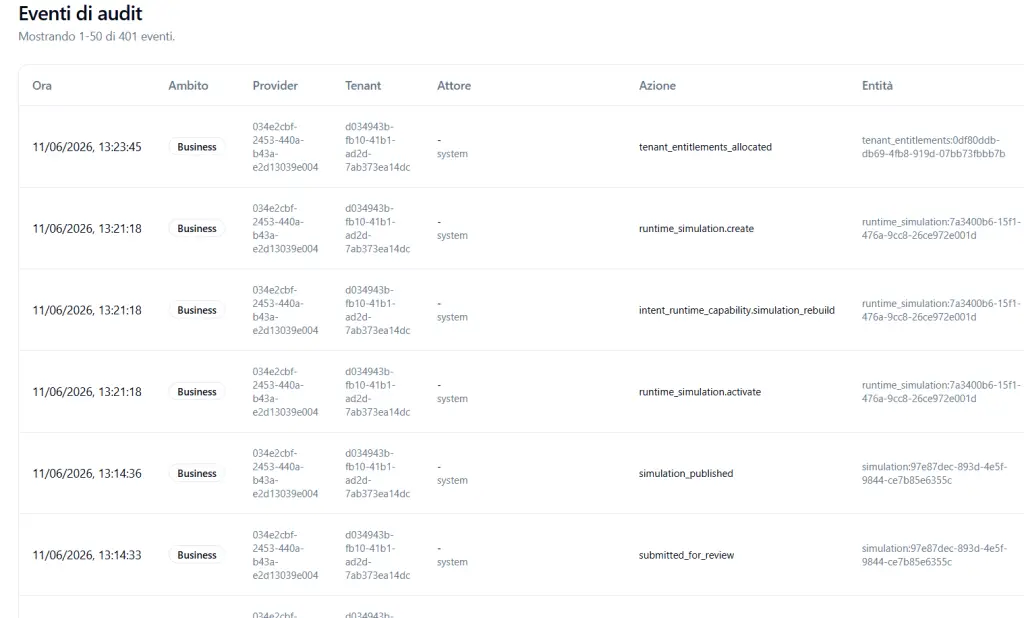
The page shows the list of recorded events.
The number of events shown relative to the total available is indicated at the top.
Example:
Showing 1-50 of 401 events
This means that the page is showing the first 50 events out of a total of 401 recorded events.
Table columns #
The audit events table consists of several columns.
Time #
The Time column shows the date and time the event was recorded.
Example:
11/06/2026, 13:23:45
This information allows for the reconstruction of the chronological sequence of actions.
Scope #
The Scope column indicates the functional area to which the event belongs.
Example:
Business
The scope helps to understand in which part of the platform the action took place.
Provider #
The Provider column shows the technical identifier of the Provider linked to the event.
This value is useful for distinguishing which Provider the tenant belongs to, especially in multi-tenant or white-label environments.
The identifier is technical and normally should not be modified or interpreted by the end user.
Tenant #
The Tenant column shows the technical identifier of the tenant affected by the event.
This value allows the event to be linked to the correct tenant.
In this case as well, it is a technical ID, useful primarily for administrative checks or technical support.
Actor #
The Actor column indicates who generated the event.
It can be:
- a user;
- an administrator;
- an automated system process.
When system is shown, it means the event was automatically generated by the platform.
Example:
system
This can happen during automated processes such as publications, activations, configuration rebuilds, or resource allocations.
Action #
The Action column describes the type of event recorded.
Examples of actions:
- tenant_entitlements_allocated
- runtime_simulation.create
- intent_runtime_capability.simulation_rebuild
- runtime_simulation.activate
- simulation_published
- submitted_for_review
This column is the most important for understanding what happened.
Entity #
The Entity column shows the technical object linked to the event.
Examples:
- tenant_entitlements
- runtime_simulation
- simulation
Next to the entity type, the technical ID of the object may also be shown.
Example:
runtime_simulation:7a3400b6-15f1-476a-9cc8-26ce972e001d
This allows the event to be linked to a specific simulation, runtime, or configuration.
Examples of events #
tenant_entitlements_allocated #
Indicates that resources and limits for the tenant have been allocated or updated.
It may concern elements such as:
- minutes;
- users;
- active runtimes;
- assigned capacities;
- configured limits.
runtime_simulation.create #
Indicates that a runtime simulation has been created.
A runtime represents operational access to a published simulation, configured with channel, language, voice, avatar, authorized Players, and access policies.
runtime_simulation.activate #
Indicates that a runtime has been activated.
An active runtime can become available to Players if it also meets the conditions for publication, allowlist, dates, and access policies.
intent_runtime_capability.simulation_rebuild #
Indicates that the system has rebuilt or updated the operational capabilities linked to the runtime simulation.
This type of event can be generated automatically when the system prepares or updates the configurations necessary for the simulation’s execution.
submitted_for_review #
Indicates that a simulation has been submitted for review.
This event is part of the approval flow prior to publication.
simulation_published #
Indicates that a guided simulation has been published.
Publication makes the simulation available as content in the tenant’s library.
Important: a published simulation is not automatically accessible to Players. To make it available to participants, it is necessary to create a runtime simulation or dedicated Player access.
How to read the audit correctly #
The audit should be read as a technical chronology of operations.
To reconstruct what happened, it is useful to follow these steps:
- start from the Time column to sort events chronologically;
- read the Action column to understand what happened;
- check the Entity column to identify the object involved;
- verify the Actor to understand if the action was performed by a user or by the system;
- use Provider and Tenant to confirm the correct administrative context.
Difference between user events and system events #
Not all events derive from a manual user action.
Some events are automatically generated by the platform.
Example:
- a user submits a simulation for review;
- the system records the event;
- after publication, the system may perform automatic rebuild or activation activities;
- these events appear in the audit with the actor system.
This distinction is important so as not to confuse manual actions with internal automatic processes.
When to use this section #
It is advisable to consult the Audit section when:
- a simulation appears published but you want to verify when it was published;
- a runtime has been created or activated and you want to check the sequence of events;
- you want to understand if a change was correctly recorded;
- you are analyzing an operational problem;
- you want to check the allocation of tenant resources;
- an administrative trace of the activities performed is needed.
What the Audit does not show #
The Audit section is not intended to show training content or Player reports.
Normally it does not contain:
- transcriptions of conversations;
- detailed Player evaluations;
- full simulation content;
- readable reports;
- extended narrative data.
To analyze results and performance, you must use the Reports section.
To modify simulations, runtimes, or resources, you must use the respective operational sections of the platform.
Best practices #
To use the Audit correctly, it is advisable to:
- read events in chronological order;
- focus on the Action column to understand the type of event;
- use the Entity column to link the event to the correct object;
- consider events with the actor system as automatic platform operations;
- use technical IDs only for verification or support;
- do not interpret the audit as a training report;
- consult the audit in case of doubts about recent publications, activations, or modifications.
Final result #
The Audit section offers the Tenant Admin a chronological and traceable view of the main activities recorded in the tenant.
It allows you to verify what happened, when it happened, which object was involved, and whether the action was performed by a user or by the system.
It is a useful tool for administrative control, operational transparency, and support in resolving any issues.


