
What this section is for #
The Provider Simulations derived from Avatar Persona section allows the Provider to create new simulations starting from a validated Avatar Persona.
This mode is useful when the Provider wants to build a simulation around an already defined and stable behavioral pattern.
The selected Avatar Persona becomes the behavioral baseline of the virtual interlocutor, i.e., the starting point for the avatar’s behavior in the simulation.
When to use this function #
The Provider can use this function when they want to:
- create a new simulation starting from a validated Avatar Persona;
- build a scenario consistent with a specific behavioral pattern;
- test a new simulation before distributing it to tenants;
- create Provider content to be published to one or more tenants;
- make clonable simulations available to Tenant Admins.
Examples of Avatar Personas to start from:
- Anxious Patient Awaiting Results;
- Denial Disbelief Family Member;
- Protective Anxious Family Member;
- Shocked Freezing Patient;
- Supported Collaborative Family Member;
- Supported Grounded Patient.
General flow #
The creation of a Provider simulation from an Avatar Persona follows this flow:
- selection of the baseline Avatar Persona;
- choice of mode;
- guided simulation creation;
- validation with SysCheck;
- approval;
- publication;
- possible internal test.
- distribution to one or more tenants;
1. Select the baseline Avatar Persona #
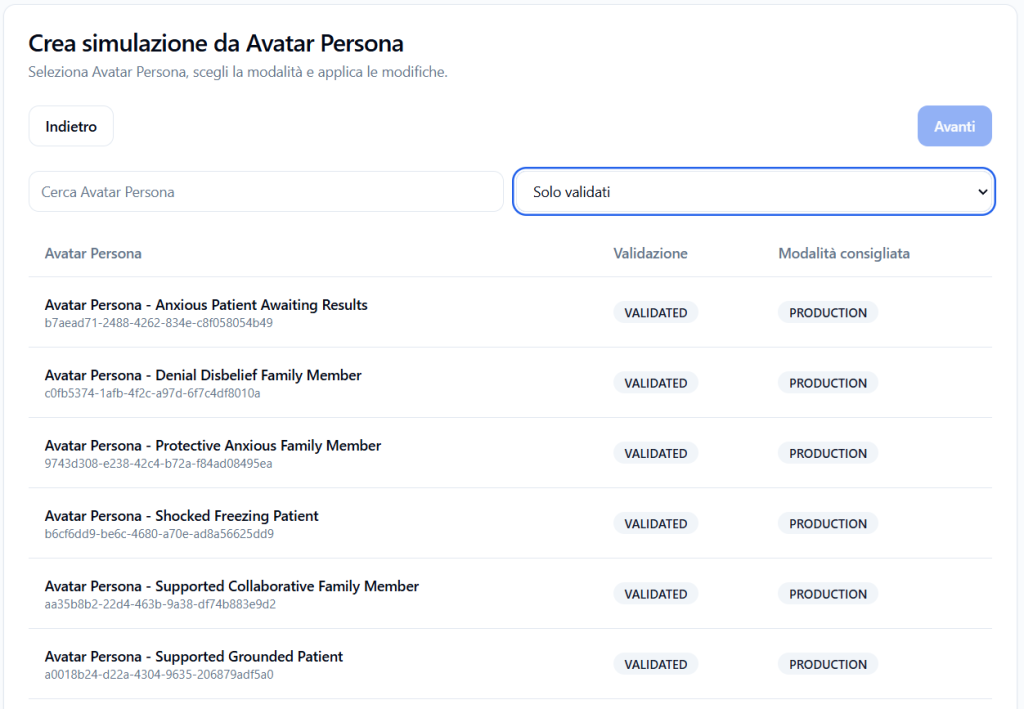
The first step consists of selecting the Avatar Persona to be used as the basis for the simulation.
The page shows the available Avatar Personas, with information such as:
- Avatar Persona name;
- validation status;
- recommended mode.
It is possible to filter the list, for example by showing only validated Avatar Personas.
Validated only #
The Validated only filter allows you to view only the Avatar Personas that have already been validated.
This option is recommended when you want to create a simulation ready for stable and productive use.
Validated Avatar Personas have an already checked behavioral pattern and are more suitable for creating production simulations.
Validation #
The Validation column shows the status of the Avatar Persona.
Example:
VALIDATED
This indicates that the profile has been validated and can be used as a reliable basis for a simulation.
Recommended mode #
The Recommended mode column indicates the suggested use for that Avatar Persona.
Example:
PRODUCTION
This means that the Avatar Persona is recommended for production simulations.
2. Choose the mode #
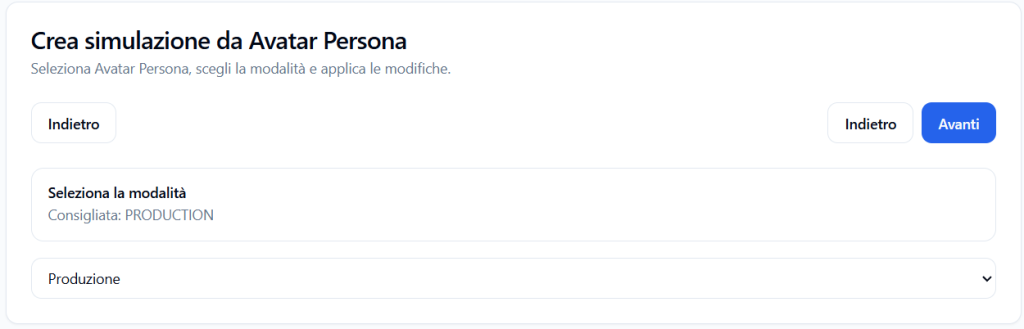
After selecting the Avatar Persona, the Provider chooses the simulation mode.
In the example shown, the recommended mode is:
PRODUCTION
The Production mode indicates that the simulation is intended for operational use, after validation and publication.
3. Create the guided simulation #
After selecting the Avatar Persona and the mode, the flow continues as in the normal creation of a guided simulation.
The Provider configures the same main elements already provided for the creation of Tenant Admin simulations:
- simulation identity;
- persona and avatar;
- narrative;
- language;
- interpretation;
- avatar behavior change;
- summary and creation.
Avatar Persona as a baseline #
The Avatar Persona chosen at the beginning becomes the simulation’s baseline.
This means that the avatar’s initial behavior will be guided by the selected behavioral pattern.
The simulation can then be completed with:
- avatar name;
- avatar role;
- Player briefing;
- Player objective;
- useful information;
- agent-only narrative;
- Observation Grid;
- Communication Skills;
- any avatar behavior change rules.
4. Simulations derived from Avatar Persona #
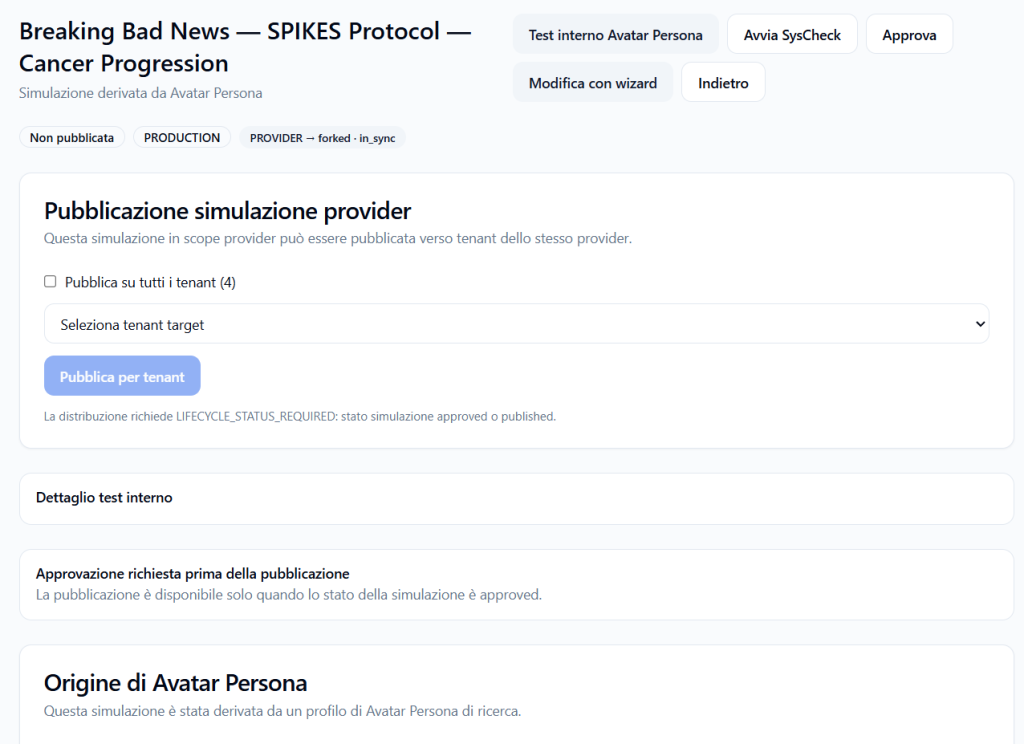
After creation, the simulation appears in the Simulations derived from Avatar Persona list.
The table shows information such as:
- simulation name;
- Source Avatar Persona;
- mode;
- status.
Status examples:
- UNPUBLISHED
- APPROVED
- PUBLISHED
- ARCHIVED
This view allows the Provider to monitor simulations created from Avatar Personas.
5. Validation with SysCheck #
Before publication, the Provider can use the button:
Start SysCheck
SysCheck performs a technical and functional check of the simulation to identify any blocking errors.
The check can help verify that the simulation is consistent and ready to be approved or published.
SysCheck can check elements such as:
- simulation completeness;
- presence of mandatory elements;
- configuration consistency;
- link with Avatar Persona;
- presence of the Observation Grid;
- configurations necessary for publication;
- any errors that prevent operational use.
If SysCheck reports problems, they must be corrected before proceeding.
6. Simulation approval #
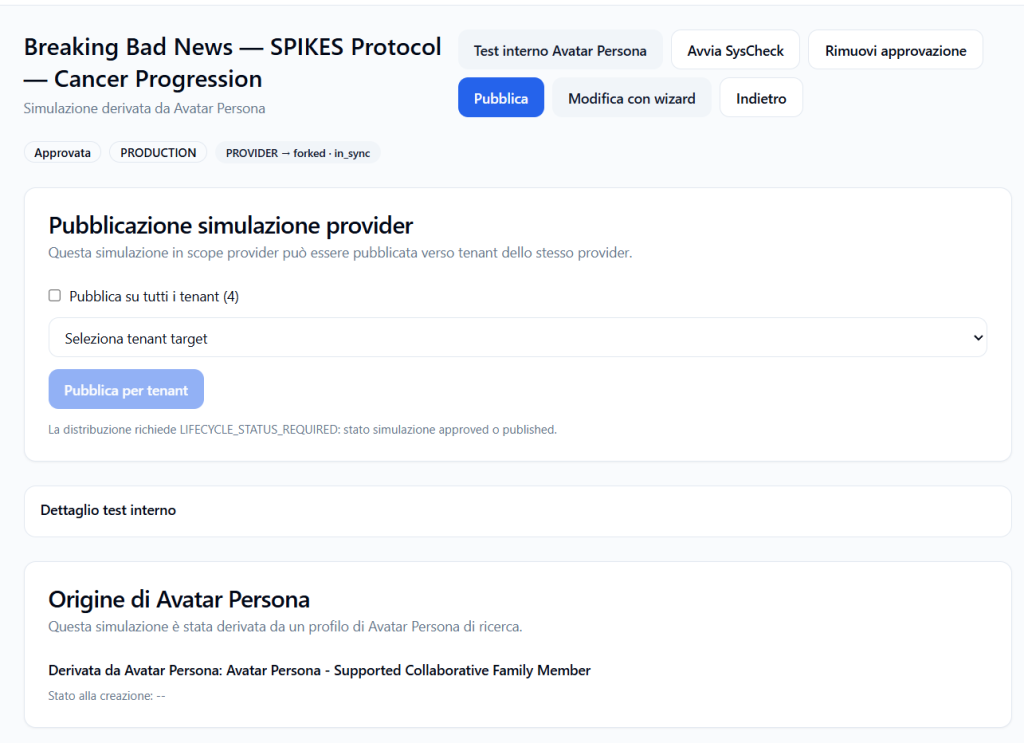
Before being published, the simulation may require approval.
When the status is Unpublished, the button may be available:
Approve
After approval, the simulation status changes to Approved.
Publication to tenants requires the simulation to be in a valid state, for example:
- approved;
- published.
If the simulation is not yet approved, the platform may show a message such as:
Distribution requires LIFECYCLE_STATUS_REQUIRED: simulation status approved or published.
This means that the simulation must be approved or published before it can be distributed to tenants.
7. Publication of the Provider simulation #
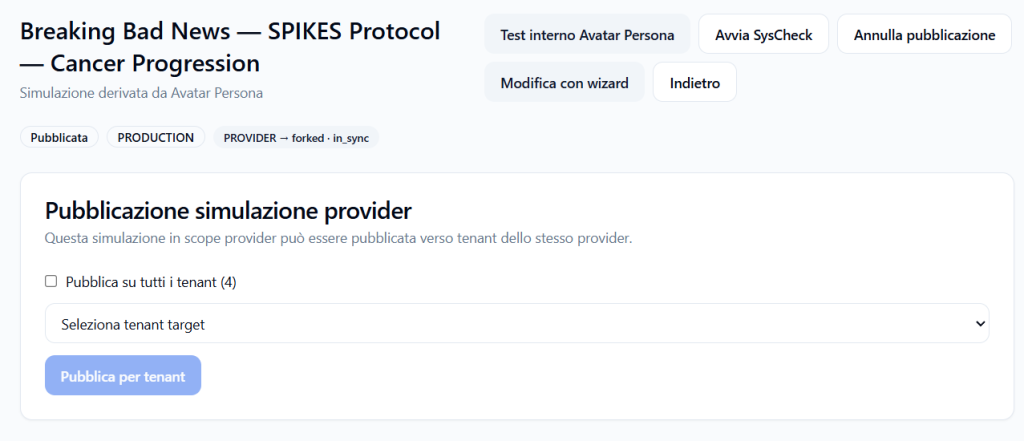
After approval, the Provider can click on:
Publish
Publication makes the Provider simulation available as publishable content to the tenants of the same Provider.
Once published, the simulation can be distributed to one or more tenants.
8. Publish the simulation to tenants #
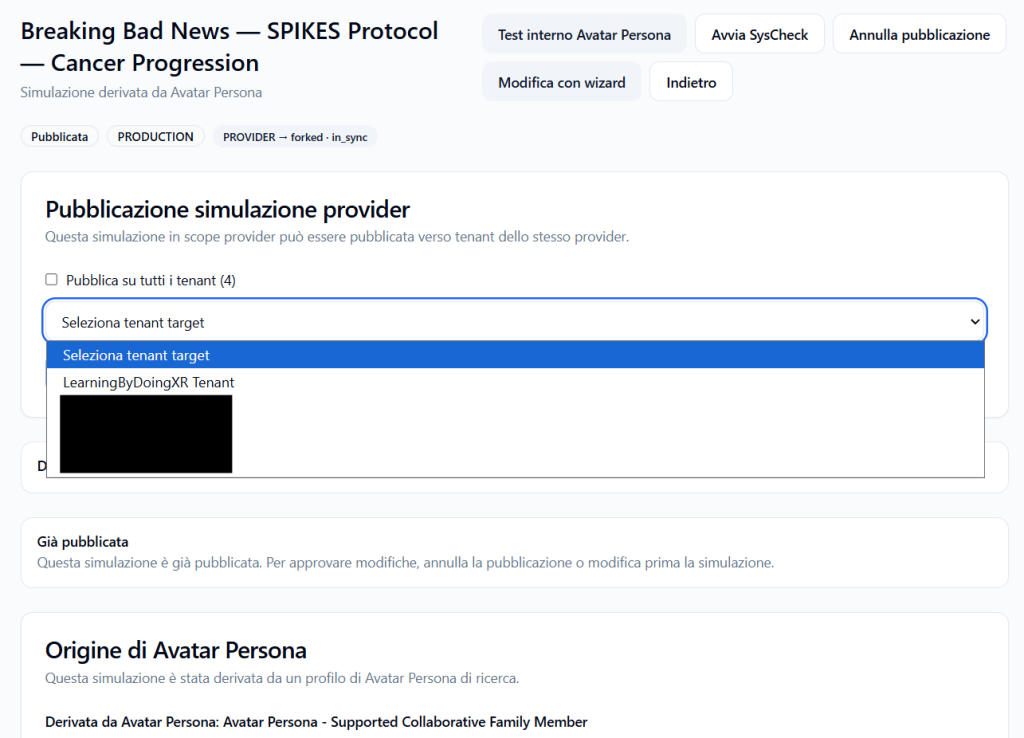
The Provider simulation publication section allows the Provider to make the simulation available to connected tenants.
The Provider can choose between two modes:
- publish to all tenants;
- publish only to a specific tenant.
Publish to all tenants #
The Publish to all tenants option allows you to distribute the simulation to all tenants connected to the Provider.
Example:
Publish to all tenants (4)
In this case, the simulation is made available to all 4 of the Provider’s tenants.
Select target tenant #
Alternatively, the Provider can choose a specific tenant from the menu:
Select target tenant
This option is useful when the simulation should only be made available to some tenants and not all.
After selecting the tenant, the Provider can click on:
Publish for tenant
What happens after publication to a tenant #
When a Provider simulation is published to a tenant, it does not automatically become a runtime accessible to Players.
Publication to tenants makes the simulation available in the Tenant Admin’s catalog.
The subsequent flow is:
- the Provider publishes the simulation to one or more tenants;
- the Tenant Admin sees it in the Clonable Simulations Catalog;
- the Tenant Admin imports the simulation into their own tenant;
- the system also imports Communication Skills, Observation Grids, Avatar Personas, and linked narrative;
- the Tenant Admin creates a runtime/Player access;
- authorized Players see the simulation in their area.
9. Avatar Persona internal test #
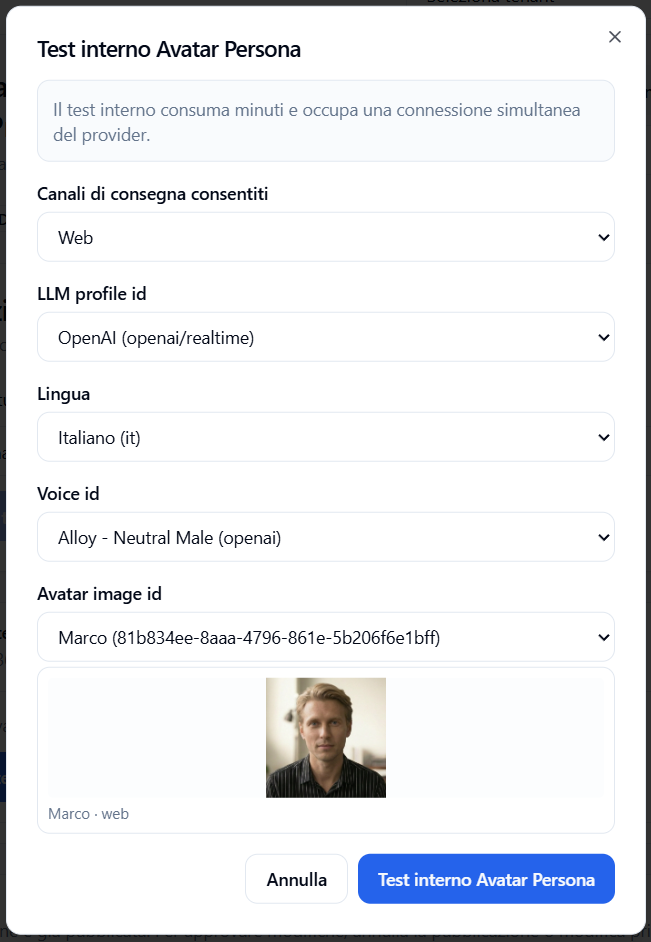
The Provider can test the simulation via the button:
Avatar Persona internal test
This function allows you to start a trial session to verify the avatar’s behavior before distribution or during review.
After starting the internal test, the page may show a section:
Internal test detail
with the session reference and the button:
Open test room
By clicking on Open test room, the Provider enters the trial room and can directly test the interaction with the avatar.
Resource consumption during internal tests #
Internal tests are not free from an operational resource perspective.
When the Provider starts an internal test:
- minutes are consumed from the Provider’s monthly minute pool;
- a simultaneous connection slot is occupied;
- the occupied slot is an available shared slot, not a slot reserved for a specific tenant;
- the slot remains occupied for the duration of the test session.
This means that an internal test uses the same real-time infrastructure as operational simulations.
It is therefore advisable to use internal tests when they are truly needed to validate the behavior, quality, and consistency of the simulation.
Why internal tests are important #
Internal testing allows the Provider to verify:
- if the Avatar Persona behaves as expected;
- if the tone is consistent with the scenario;
- if the simulation is understandable;
- if the briefing and objective generate the expected conversation;
- if the Observation Grid is consistent;
- if any avatar behavior changes work;
- if the simulation is ready to be released to tenants.
Internal testing is particularly useful before distributing a simulation to multiple tenants.
10. Edit with wizard #
The Edit with wizard button allows you to reopen the guided flow and modify the simulation.
It is useful when the Provider needs to correct or update:
- identity;
- narrative;
- Player objective;
- Avatar Persona;
- language;
- Observation Grid;
- avatar behavior change;
- other simulation elements.
If the simulation is already published, some changes may require unpublishing or a new approval cycle.
11. Unpublish #
The Unpublish button allows you to remove the simulation from the published state.
This action is useful when:
- the simulation needs to be corrected;
- you want to prevent distribution to new tenants;
- errors were found after publication;
- it is necessary to update content or configurations.
After unpublishing, the simulation may need to be approved and published again before being distributed.
12. Avatar Persona Origin #
The Avatar Persona Origin section shows which Avatar Persona the simulation is derived from.
Example:
Derived from Avatar Persona: Avatar Persona – Supported Collaborative Family Member
This information is important because it allows for tracking the behavioral pattern that guided the creation of the simulation.
Difference between Provider simulation and runtime #
A Provider simulation is training content created and managed by the Provider.
A runtime, on the other hand, is the operational access that allows Players to use a simulation.
The Provider simulation can be published to tenants, but Players do not see it directly.
To make it usable by Players, the Tenant Admin must import it into the tenant and create a runtime.
Complete example #
The Provider wants to create a healthcare simulation starting from a validated Avatar Persona.
Step 1 #
Select:
Avatar Persona – Supported Collaborative Family Member
Step 2 #
Choose mode:
Production
Step 3 #
Complete the simulation with:
- name;
- briefing;
- objective;
- narrative;
- Observation Grid;
- language;
- possible avatar behavior change.
Step 4 #
Start:
SysCheck
to check for any blocking errors.
Step 5 #
Approve the simulation.
Step 6 #
Publish the simulation.
Step 7 #
Distribute it:
- to a specific tenant;
- or to all of the Provider’s tenants.
Step 8 #
The Tenant Admin imports the simulation into the tenant and creates a runtime for the Players.
Best practices #
To correctly create Provider simulations from Avatar Personas, it is advisable to:
- always start from validated Avatar Personas for production simulations;
- choose an Avatar Persona consistent with the formative goal;
- carefully complete the briefing, objective, and narrative;
- associate a consistent Observation Grid;
- use SysCheck before publication;
- perform an internal test when you want to verify the avatar’s behavior;
- remember that internal tests consume Provider minutes and occupy shared simultaneous slots;
- approve the simulation before publication;
- distribute the simulation only to the tenants for whom it is relevant;
- use “Publish to all tenants” only when the content is suitable for the entire Provider ecosystem;
- ensure that the Tenant Admin knows that, after Provider publication, they will need to import the simulation and create a runtime.
Final result #
Creating Provider simulations from Avatar Personas allows for building training content starting from validated behavioral patterns.
The Provider selects the baseline Avatar Persona, completes the simulation with the wizard, checks the quality with SysCheck, can test it internally, approve it, and publish it.
After publication, the simulation can be made available to one or more tenants of the same Provider.
Tenants will be able to import it, adapt it if provided, and create operational runtimes for Players.
This logic allows the Provider to build a consistent, validated simulation library that can be distributed to tenants in a controlled manner.


