
What this section is for #
The Resources and Limits section allows the Tenant Admin to view the resources assigned to the tenant, check how many have already been used, and understand how much capacity remains available.
This page is useful for monitoring:
- monthly minutes assigned and consumed;
- available users and those already created;
- available active runtimes;
- simultaneous connections to simulations.
The values shown depend on the plan, the limits assigned by the Provider, or the administrative configuration of the tenant.
Monthly minutes #
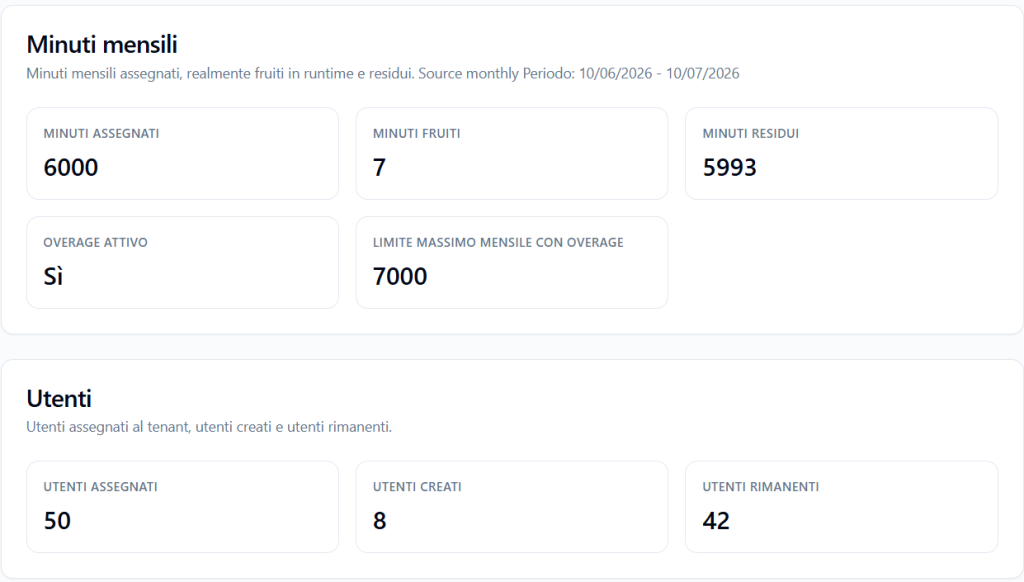
The Monthly minutes section shows the minutes assigned to the tenant, the minutes actually used in runtimes, and the remaining minutes in the current monthly period.
The reference period is shown in the section description.
Example:
Period: 2026-06-10 – 2026-07-10
Assigned minutes #
Indicates the number of minutes included in the monthly period.
Example:
6000
This means that the tenant has 6000 minutes for the indicated period.
Used minutes #
Indicates how many minutes have already been used in runtime simulations.
Example:
7
This means that the Players or users of the tenant have already consumed 7 minutes of simulation in the current period.
Remaining minutes #
Indicates how many minutes remain available.
Example:
5993
The value is calculated by subtracting the used minutes from the assigned minutes.
Overage active #
Indicates whether the tenant can continue to use minutes beyond the assigned monthly quota, within a configured maximum limit.
Example:
Yes
This means that overage is active.
Maximum monthly limit with overage #
Indicates the maximum monthly limit that can be used when overage is active.
Example:
7000
In this case, the tenant has 6000 assigned minutes, but can reach up to a maximum of 7000 minutes in the monthly period thanks to overage.
Users #
The Users section shows the number of users assigned to the tenant, how many have already been created, and how many can still be added.
Assigned users #
Indicates the maximum number of users available for the tenant.
Example:
50
This means that the tenant can have up to 50 users.
Created users #
Indicates how many users have already been created in the tenant.
Example:
8
This means that 8 users are already present.
Remaining users #
Indicates how many users can still be created.
Example:
42
The value is calculated by subtracting the created users from the assigned users.
Tenant active runtimes #
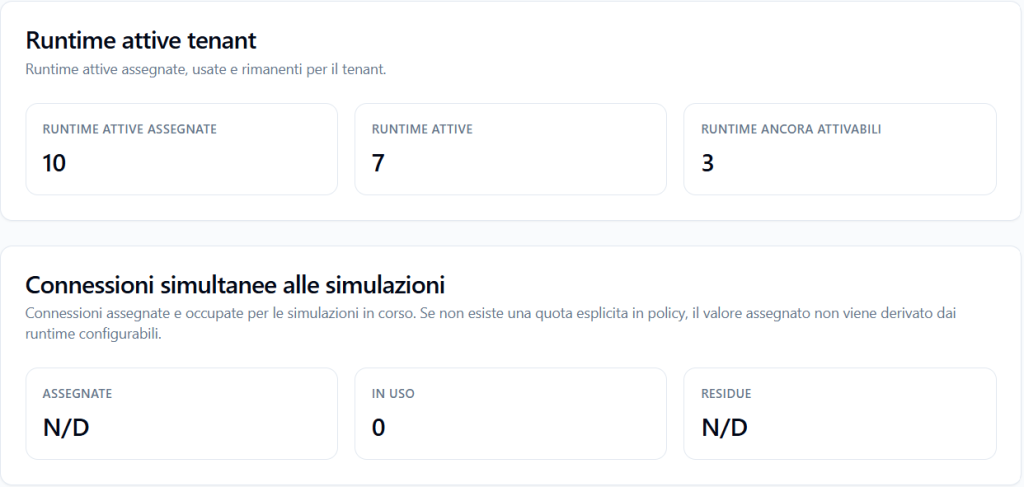
The Tenant active runtimes section shows how many runtime simulations can be activated for the tenant.
An active runtime represents operational access to a simulation, i.e., a simulation configured and made available according to specific access settings, channel, language, avatar, voice, and authorized Players.
Assigned active runtimes #
Indicates the maximum number of active runtimes available for the tenant.
Example:
10
This means that the tenant can have up to 10 active runtimes.
Active runtimes #
Indicates how many runtimes are currently active.
Example:
7
This means that the tenant is already using 7 active runtimes.
Runtimes still available #
Indicates how many runtimes can still be activated before reaching the assigned limit.
Example:
3
In this case, the tenant still has 3 runtimes available.
Simultaneous connections to simulations #
The Simultaneous connections to simulations section shows the capacity related to simulations running at the same time.
This is a different section from active runtimes: it does not indicate how many simulations have been configured, but how many sessions can be used simultaneously.
Assigned #
Indicates the number of simultaneous connections assigned to the tenant, if an explicit quota is present in the policy.
Example:
N/A
The value N/A means that no explicit quota assigned in the policy is available.
Important: N/A does not mean zero. It means that the value is not defined and the Provider’s shared simultaneous sessions are used with all Tenants contained within it. It indicates that there are no reserved access sessions for this specific tenant.
In use #
Indicates how many simultaneous connections are currently occupied by ongoing simulations.
Example:
0
This means that, at the time of viewing, there are no active sessions in progress.
Remaining #
Indicates how many simultaneous connections remain available, when an assigned quota exists.
Example:
N/A
If the assigned quota is not available, the remaining value can also be shown as N/A.
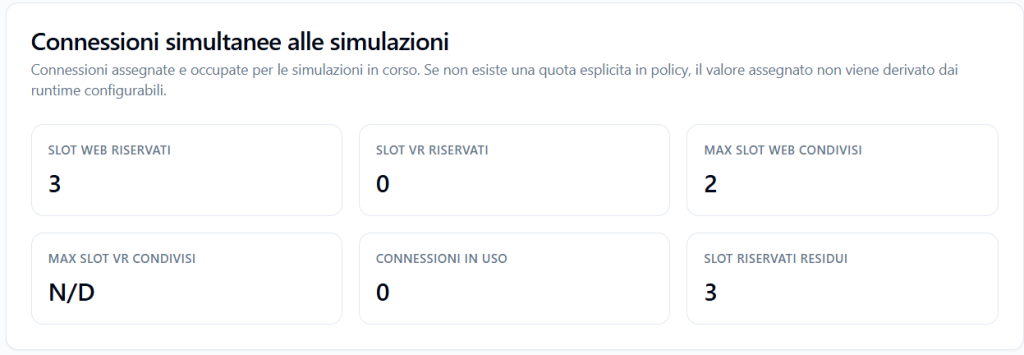
In this example, instead, 3 reserved simultaneous connections to be carried out via WEB have been assigned and the possibility of an additional 2 shared simultaneous connections (if free from other users of the Provider). No reserved simultaneous connections via VR have been configured.
Difference between minutes, users, runtimes, and simultaneous connections #
This page shows different resources, which should not be confused.
Minutes #
They are the total time of simulation usage in the monthly period.
Users #
They are the people registered in the tenant, for example Tenant Admin, Manager, or Player.
Active runtimes #
They are operational accesses to simulations, i.e., simulations configured and available according to specific rules.
Simultaneous connections #
They are the sessions that can be carried out at the same time.
Practical example:
A tenant can have 50 users, 10 active runtimes, and a certain number of simultaneous connections.
This does not mean that all 50 users can run a simulation at the same time: the possibility of concurrent access depends on the available simultaneous connections.
Final result #
The Resources and Limits section provides the Tenant Admin with a summary view of the capacity available and already used by the tenant.
It allows you to quickly understand:
- how many minutes have been assigned;
- how many minutes have been consumed;
- how many minutes remain available;
- whether overage is active;
- how many users have been created;
- how many users can still be added;
- how many runtimes are active;
- how many runtimes can still be activated;
- how many simultaneous connections are in use.
This view helps manage the tenant in an orderly manner and prevent unexpectedly reaching the available limits.


