
What this section is for #
The Tenant report section allows the Tenant Admin to consult the results of simulations carried out by Players, analyze runtime attempts, and export readable reports in PDF format.
This area is used to monitor:
- Player progress;
- simulation results;
- communicative readiness;
- detected communication skills;
- conversational signals;
- phases reached in the conversation;
- key moments;
- recurring opportunities;
- any interruptions for Player protection;
- aggregate performance by runtime.
The report helps the Tenant Admin understand how simulations are going and which areas can be strengthened in the training path.
Accessing the section #
From the side menu, enter the Tenant Administrator area and select the Reports item.
The page shows the title:
Tenant report
Below the title, it is indicated that you can select a Player, consult runtime attempts, and export readable DEEP reports.
Tenant selection #
At the top of the page is the tenant selector.
If the Tenant Admin has access to only one tenant, the tenant is already selected.
If the user has visibility over multiple tenants, they can choose the tenant to analyze from the dropdown menu.
Consultation modes #
The report can be consulted in two main modes:
- By player
- By runtime
Report by player #
The By player mode allows you to consult reports related to a single Player.
To use this mode:
- select By player from the first menu;
- choose the Player from the dedicated menu;
- set a date range;
- consult the available attempts, reports, and metrics.
This view is useful when you want to analyze the path of a single participant.
Player Selection #
The Select player menu shows the Players available in the tenant.
Examples:
- Player 02 · Player
- Player 03 · Player
- Player 04 · Player
- Player 05 · Player
After selecting a Player, the system shows data related to their simulations and attempts, if available and if the tenant’s privacy settings allow it.
Privacy protection active #
In some tenants, privacy protection may be active.
When privacy protection is active, the Tenant Admin cannot consult the individual reports of single Players.
In this case, a message such as the following appears:
Privacy protection active
Tenant privacy protection is active: individual player reports are not available for Tenant Admins. You can only consult aggregate data.
This means that:
- individual Player reports are not visible;
- personal performance details are not shown;
- the Tenant Admin can only consult aggregate data;
- the privacy of the individual participant is preserved.
This configuration is useful when the organization wants to analyze overall trends and results without exposing individual performance.
Report by runtime #
The By runtime mode allows you to analyze aggregate data for a specific runtime simulation.
To use this mode:
- select By runtime;
- choose the runtime status, for example Active;
- select a runtime from the menu;
- set a date range;
- consult the global details.
If no runtime has been selected, the page shows a message such as:
Select a runtime
Choose an active or archived runtime to see the global details.
This view is useful for understanding how a specific simulation is performing overall, regardless of the individual Player.
Date filters #
The page allows you to set a time interval via two date fields:
- start date;
- end date.
The reports shown are filtered based on the selected period.
This is useful for analyzing:
- a single day;
- a week;
- a month;
- a specific simulation delivery period.
Global conversational profile #
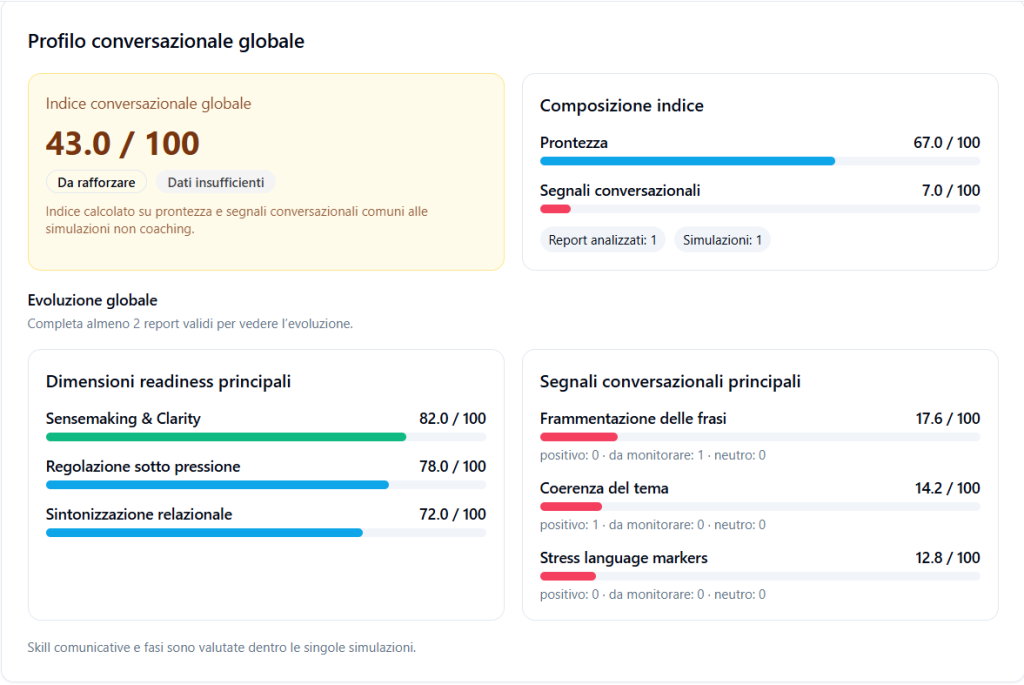
When aggregate data is available, the page can show the Global conversational profile.
This section summarizes the overall performance of the analyzed conversations.
Global conversational index #
The Global conversational index shows an overall score out of 100.
Example:
43.0 / 100
The score is accompanied by a status, for example:
- To be strengthened;
- Insufficient data;
- Adequate;
- Critical.
This index is calculated from components common to non-coaching simulations, such as readiness and conversational signals.
Index composition #
The Index composition section shows the weight of the main areas considered.
Example:
- Readiness: 67.0 / 100
- Conversational signals: 7.0 / 100
The composition helps to understand which components are supporting the overall result and which require attention.
Main readiness dimensions #
This section shows the most relevant readiness dimensions.
Examples:
- Sensemaking & Clarity;
- Regulation under pressure;
- Relational tuning.
Each dimension has a score out of 100.
This data helps to understand which conversational skills are most solid in the group or period analyzed.
Main conversational signals #
This section shows the most relevant conversational signals that emerged in the reports.
Examples:
- Sentence fragmentation;
- Theme coherence;
- Stress language markers.
For each signal, the following may be indicated:
- score;
- number of positive signals;
- elements to monitor;
- neutral elements.
Aggregate report by runtime #
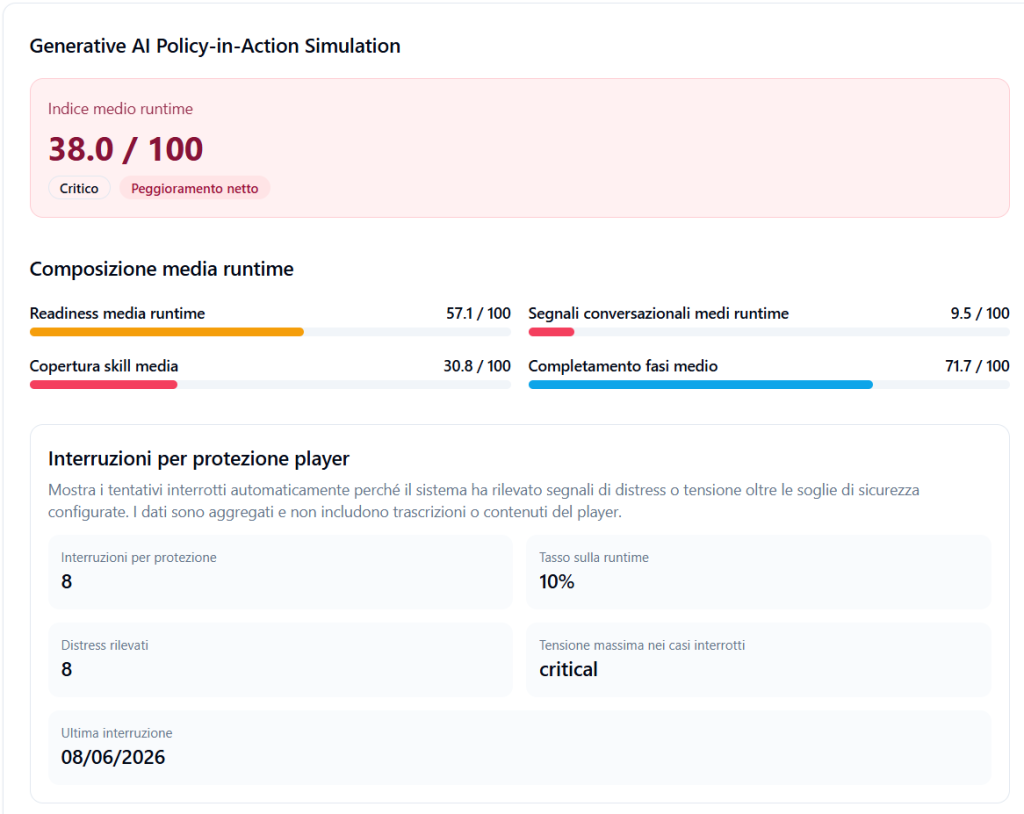
When a runtime is selected, the system can show an aggregate view of the simulation.
This view shows the average performance of the attempts associated with that runtime.
Average runtime index #
The Average runtime index shows the average score of the simulation.
Example:
38.0 / 100
The score may be accompanied by labels such as:
- Critical;
- Net worsening;
- To be strengthened;
- In development.
This data allows you to quickly understand the average performance level in the selected simulation.
Average runtime composition #
The average runtime composition shows the main areas contributing to the result.
Examples:
- Average runtime readiness
- Average runtime conversational signals
- Average skill coverage
- Average phase completion
This section helps to understand if the result depends mainly on readiness issues, few positive conversational signals, poorly covered skills, or uncompleted phases.
Interruptions for player protection #
The Interruptions for player protection section shows attempts automatically interrupted because the system detected signals of distress or tension beyond the configured safety thresholds.
This section is shown in aggregate form and does not include transcriptions or Player content.
It can include:
- number of protection interruptions;
- rate on runtime;
- detected distress;
- maximum tension in interrupted cases;
- date of the last interruption.
Example:
- Protection interruptions: 8
- Rate on runtime: 10%
- Detected distress: 8
- Maximum tension in interrupted cases: critical
- Last interruption: 2026-06-08
This data is used to monitor the safety of the experience and should not be read as a negative evaluation of the Player’s performance.
Average trend of attempts #
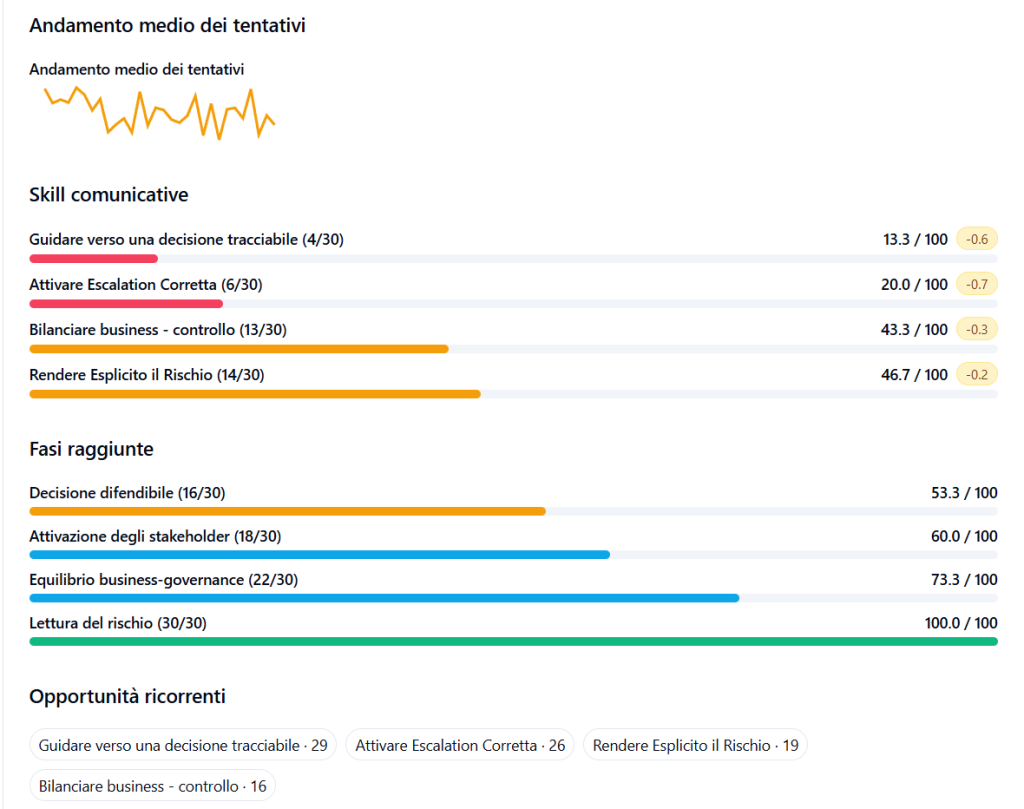
The Average trend of attempts section shows the evolution of results over time.
It can include a graph of the average trend and details of some metrics.
This view helps to understand if attempts are improving, worsening, or remaining stable.
Communication skills #
The Communication skills section shows the average performance on the skills expected by the simulation.
Examples:
- Guiding towards a traceable decision;
- Activating Correct Escalation;
- Balancing business – control;
- Making Risk Explicit.
For each skill, the following may be shown:
- detection count;
- score out of 100;
- any variation compared to the previous period.
This section is useful for understanding which communicative behaviors are demonstrated most frequently and which need to be reinforced.
Phases reached #
The Phases reached section shows how well Players manage to go through the phases provided by the Observation Grid.
Examples:
- Defensible decision;
- Stakeholder activation;
- Business-governance balance;
- Risk reading.
Each phase shows a score out of 100.
This data helps to understand if Players manage to carry the conversation forward to the more advanced phases or if they stop in the early parts of the dialogue.
Recurring opportunities #
The Recurring opportunities section shows the areas where opportunities for improvement emerge most often.
Examples:
- Guiding towards a traceable decision;
- Activating Correct Escalation;
- Making Risk Explicit;
- Balancing business – control.
These opportunities indicate the training areas that may be useful to work on in subsequent coaching, debriefing, or training interventions.
Individual attempts #
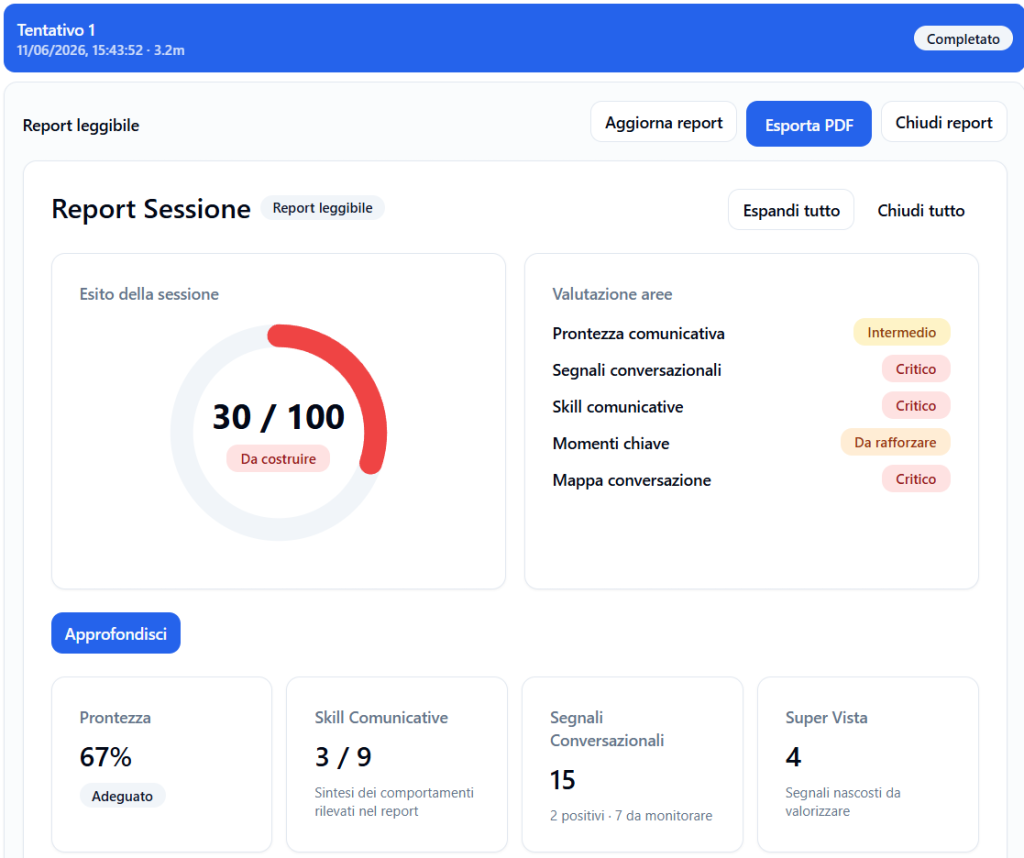
When privacy allows, the Tenant Admin can open the report of a single attempt.
Each attempt shows a header bar with:
- attempt number;
- date and time;
- duration;
- attempt status.
Status examples:
- Completed
- Interrupted for protection
Readable report #
The Readable report is the narrative and educational version of the report.
It is designed to be easily consulted by Tenant Admins, Managers, or other authorized figures.
The screen may include:
- session outcome;
- area evaluation;
- summary metrics;
- expandable sections;
- buttons to update or export the report.
Update report #
The Update report button allows you to regenerate or update the report when new data is available or when the report needs to be recalculated.
This function may take a few moments.
Export PDF #
The Export PDF button allows you to download the report in PDF format.
The PDF contains a readable version of the report, useful for archiving, internal sharing, or documenting the path.
Close report #
The Close report button closes the report view and returns to the previous screen.
Expand all and Close all #
The Expand all and Close all buttons allow you to quickly open or close all sections of the report.
They are useful when the report contains many detailed areas.
Session outcome #
The Session outcome section shows the overall score of the attempt.
Example:
30 / 100
The score may be accompanied by a status, for example:
- To be built;
- Critical;
- To be strengthened;
- Intermediate;
- Adequate.
This section offers a summary reading of the session’s performance.
Area evaluation #
The Area evaluation section shows the main areas analyzed by the report.
Examples:
- Communicative readiness;
- Conversational signals;
- Communication skills;
- Key moments;
- Conversation map.
Each area can have a status, such as:
- Critical;
- To be strengthened;
- Intermediate;
- Adequate;
- In development.
This view allows you to quickly understand which areas are most solid and which require improvement.
Post-session evaluation #
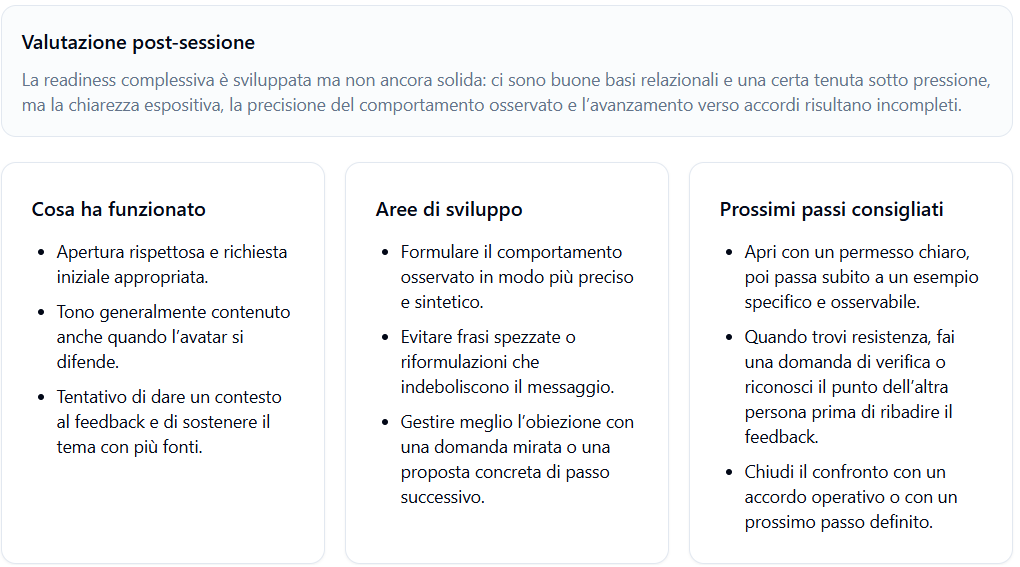
The Post-session evaluation section summarizes in narrative form what emerged from the conversation.
It may include a summary sentence, for example:
Overall readiness is developed but not yet solid: there are good relational foundations and some resilience under pressure, but clarity of exposition, precision of observed behavior, and progress towards agreements remain incomplete.
This part serves to transform numerical data into an understandable reading of performance.
What worked #
The What worked section highlights the positive elements of the conversation.
Examples:
- respectful opening and appropriate initial request;
- generally restrained tone even when the avatar is defensive;
- attempt to provide context for feedback and support the theme with multiple sources.
This section helps to recognize effective behaviors to maintain.
Development areas #
The Development areas section indicates aspects to improve.
Examples:
- formulate the observed behavior more precisely and concisely;
- avoid broken sentences or reformulations that weaken the message;
- better manage objections with a targeted question or a concrete proposal for the next step.
This section is useful for setting up a debriefing or an improvement plan.
Recommended next steps #
The Recommended next steps section proposes operational indications to improve in subsequent attempts.
Examples:
- open with clear permission, then move immediately to a specific and observable example;
- when resistance emerges, ask a verification question or acknowledge the other person’s point before reiterating feedback;
- close the discussion with an operational agreement or a defined next step.
These suggestions transform the report into a practical learning tool.
Communication Readiness Dimensions #
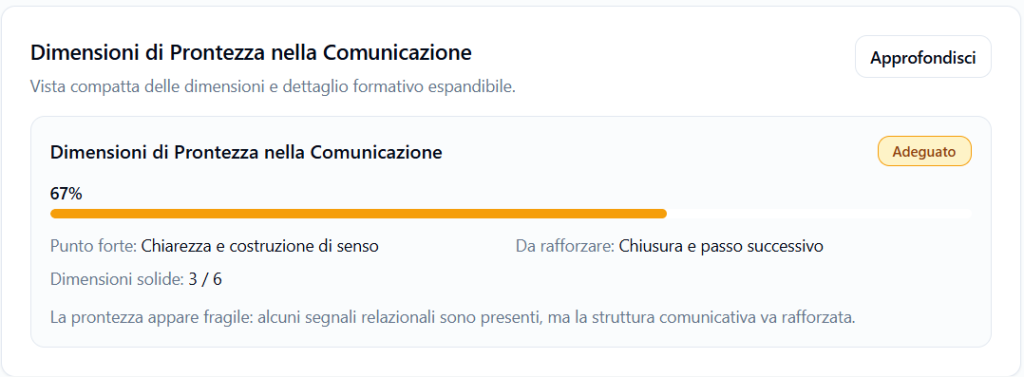
The Communication Readiness Dimensions section shows a compact view of the readiness dimensions.
It can include:
- percentage score;
- overall status;
- strong point;
- area to strengthen;
- number of solid dimensions;
- training summary.
Example:
- 67%
- Strong point: Clarity and sense-making
- To strengthen: Closing and next step
- Solid dimensions: 3 / 6
The Learn more button allows you to consult more details.
Conversational Signals #
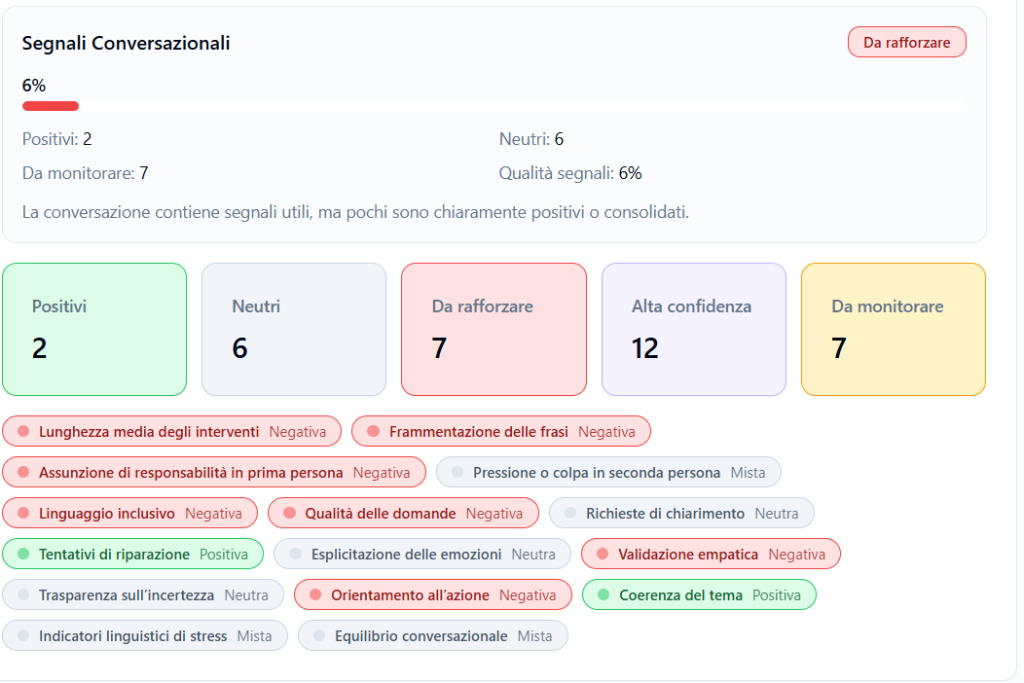
The Conversational Signals section shows the signals that emerged in the conversation.
It can include:
- positive signals;
- neutral signals;
- signals to strengthen;
- high confidence signals;
- signals to monitor.
Signal examples:
- average length of interventions;
- sentence fragmentation;
- taking personal responsibility;
- second-person pressure or blame;
- inclusive language;
- quality of questions;
- repair attempts;
- explicit expression of emotions;
- empathic validation;
- transparency about uncertainty;
- action orientation;
- theme coherence;
- linguistic stress indicators;
- conversational balance.
Each signal can be classified as positive, negative, neutral, or mixed.
This section helps to understand the communicative quality of the conversation beyond the simple final score.
Communication skill coverage #
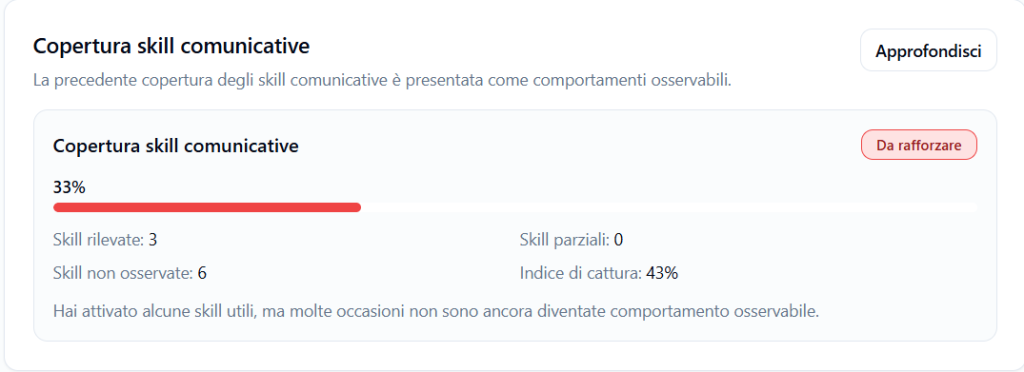
The Communication skill coverage section shows how many expected communication skills were actually detected.
Example:
- 33%
- Skills detected: 3
- Partial skills: 0
- Skills not observed: 6
- Capture index: 43%
This section indicates how much the Player transformed the expected skills into observable behaviors during the conversation.
Communication skill path #
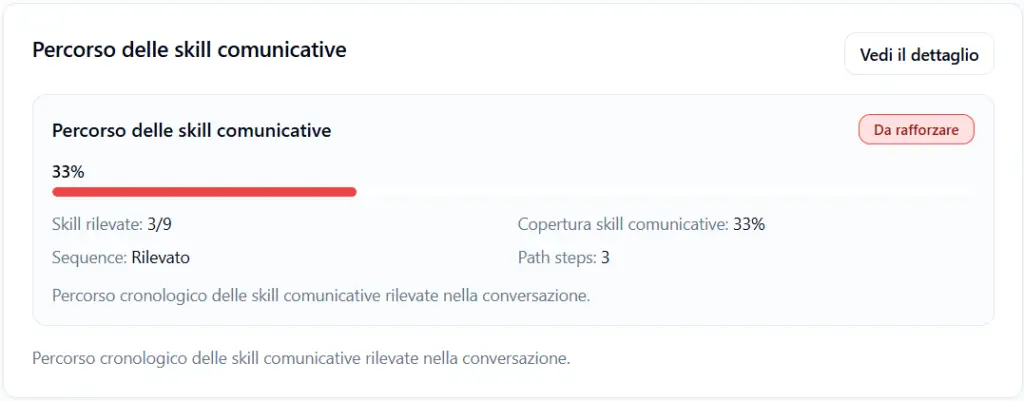
The Communication skill path section shows the chronological path of the detected skills.
It can indicate:
- detected skills;
- communication skill coverage;
- detected sequences;
- number of steps in the path.
This view helps to understand not only if a skill was used, but also at what point in the conversation it emerged.
Activate Super View #
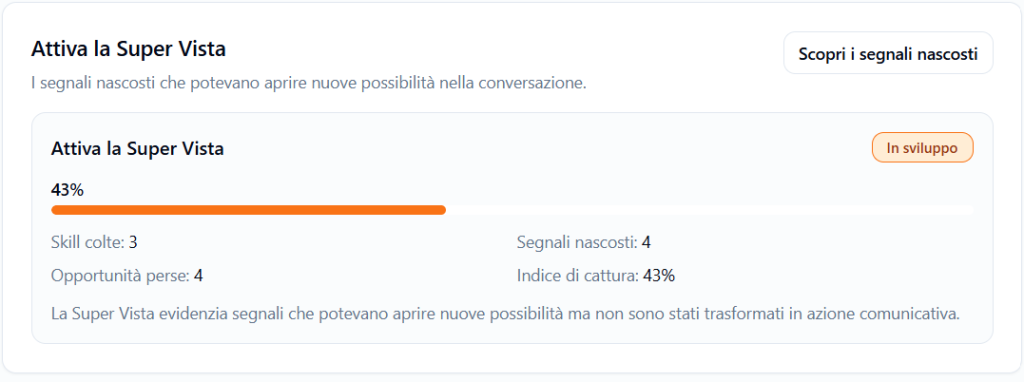
The Super View highlights hidden signals that could have opened new possibilities in the conversation.
It can show:
- skills caught;
- hidden signals;
- missed opportunities;
- capture index.
Example:
The Super View highlights signals that could have opened new possibilities but were not transformed into communicative action.
This section is useful for identifying missed opportunities, i.e., moments when the Player could have deepened, clarified, repaired, or better guided the conversation.
Conversation Map #
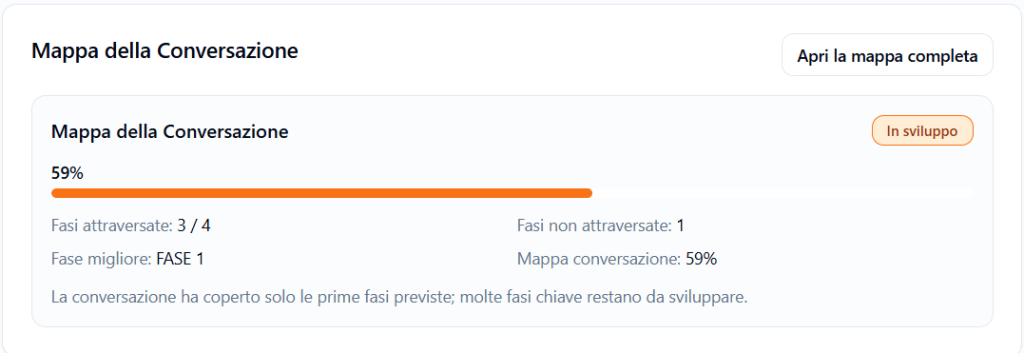
The Conversation Map section shows how much the conversation went through the expected phases.
It can include:
- phases traversed;
- phases not traversed;
- best phase;
- map coverage percentage.
Example:
- Phases traversed: 3 / 4
- Phases not traversed: 1
- Best phase: PHASE 1
- Conversation map: 59%
This section helps to understand if the conversation advanced along the expected path or if it stopped before completing important phases.
Key Moments #
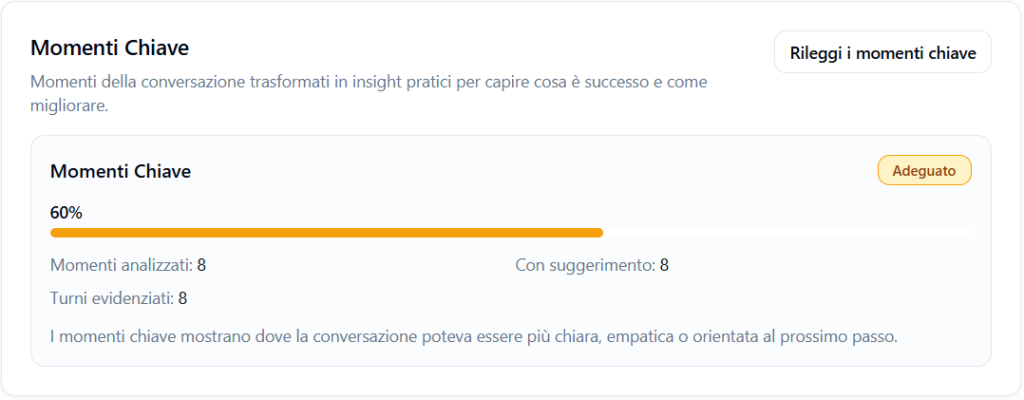
The Key Moments section transforms some moments of the conversation into practical insights.
It can include:
- analyzed moments;
- highlighted turns;
- moments with suggestions;
- overall score.
Example:
Key moments show where the conversation could have been clearer, more empathetic, or more oriented towards the next step.
The Reread key moments button allows you to delve deeper into these passages.
Interruptions #
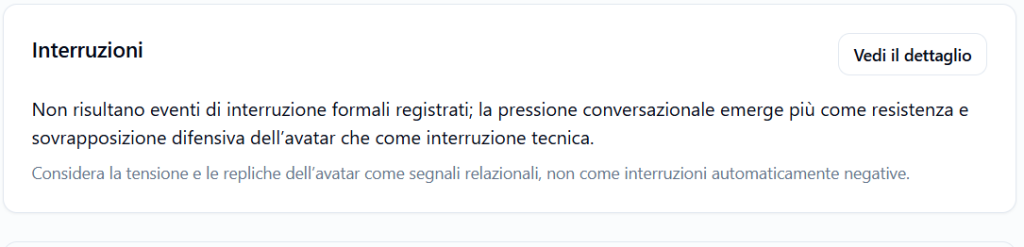
The Interruptions section signals if there are formal interruption events.
If no automatic interruptions result, a message such as the following may be shown:
There are no formal recorded interruption events; conversational pressure emerges more as resistance and defensive overlapping by the avatar than as a technical interruption.
This section distinguishes between:
- technical or automatic interruptions;
- physiological conversational tension;
- avatar resistance;
- relational difficulties emerged in the dialogue.
Report not generated for protection #
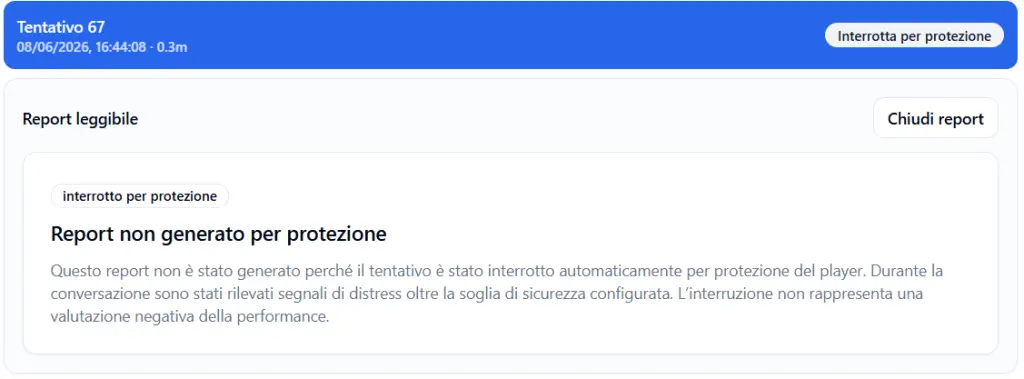
If an attempt is automatically interrupted for Player protection, the readable report is not generated.
In this case, a message such as the following appears:
Report not generated for protection
This report was not generated because the attempt was automatically interrupted for player protection. During the conversation, distress signals beyond the configured safety threshold were detected. The interruption does not represent a negative evaluation of performance.
This means that:
- the system prioritized Player safety;
- the conversation was interrupted protectively;
- the report is not produced;
- the interruption should not be interpreted as a failure or negative judgment.
PDF Report #
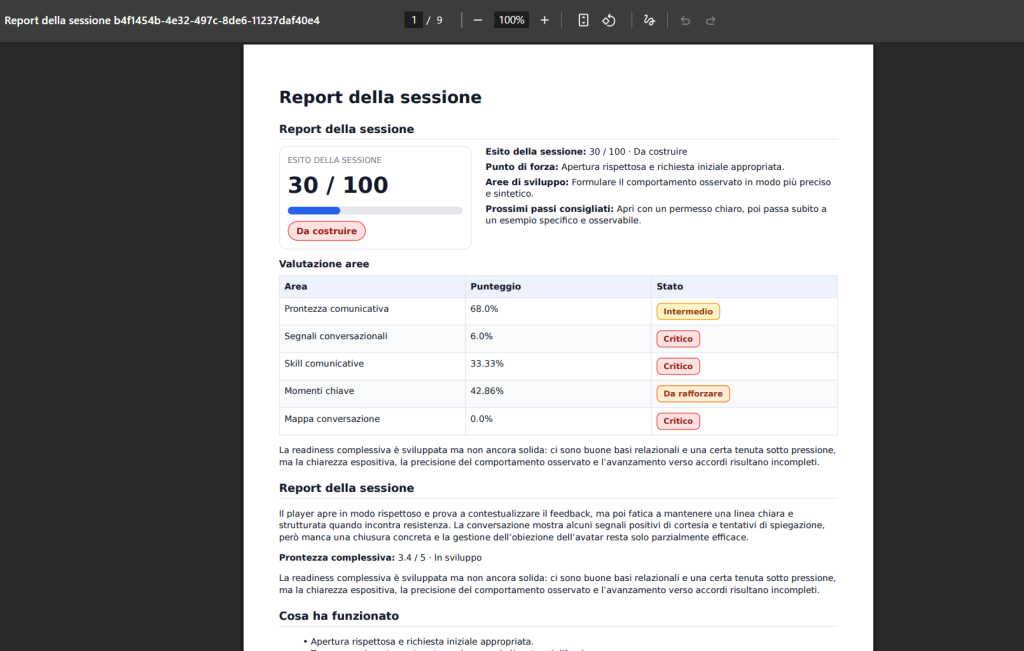
The report can be exported in PDF format.
The PDF contains a readable and structured version of the report, with:
- session outcome;
- overall score;
- status;
- area evaluation;
- narrative summary;
- what worked;
- development areas;
- recommended next steps;
- additional detailed sections, if available.
The PDF is useful for archiving the report or sharing it with authorized figures.
How to correctly read the scores #
Report scores should not be read as absolute judgments on the person.
They are educational indicators related to a specific simulated conversation.
A low score indicates that, in that attempt, some observable behaviors did not emerge sufficiently or were not clearly detected.
The report therefore serves to identify:
- what was demonstrated;
- what remained partial;
- what opportunities were missed;
- which behaviors can be practiced in the next attempt.
Best practices for the Tenant Admin #
To use the Reports section correctly, it is advisable to:
- always select the correct period before analyzing data;
- use the Player view only when the tenant’s privacy settings allow it;
- use the runtime view for aggregate analysis;
- not interpret protection interruptions as negative evaluations;
- read the scores along with the narrative explanations;
- use “What worked”, “Development areas”, and “Next steps” for debriefing;
- export the PDF only when the report is complete and updated;
- use aggregate data to identify recurring training trends;
- consult communication skills to understand which behaviors need to be reinforced;
- use recurring opportunities to plan coaching, training, or new simulations.
Final result #
The Tenant report section offers the Tenant Admin a complete view of simulation progress.
It allows for the analysis of both individual attempts, when permitted by privacy settings, and aggregate data by runtime.
The report transforms simulated conversations into useful information for:
- evaluating communicative readiness;
- identifying demonstrated skills and skills not yet consolidated;
- monitoring conversational signals;
- detecting opportunities for improvement;
- exporting readable reports;
- protecting Player privacy and safety.
The goal is not to judge the Player, but to make visible what happened in the conversation and help the organization build more targeted training paths.


