
What this section is for #
The My Simulations section allows the Player to view and launch simulations assigned to their profile.
On this page, the Player sees only simulations that are:
- active;
- assigned to their account;
- available according to the rules set by the Tenant Admin;
- compatible with the intended channel, such as Web or VR;
- not expired;
- still usable according to the number of attempts allowed.
Simulations visible to the Player #
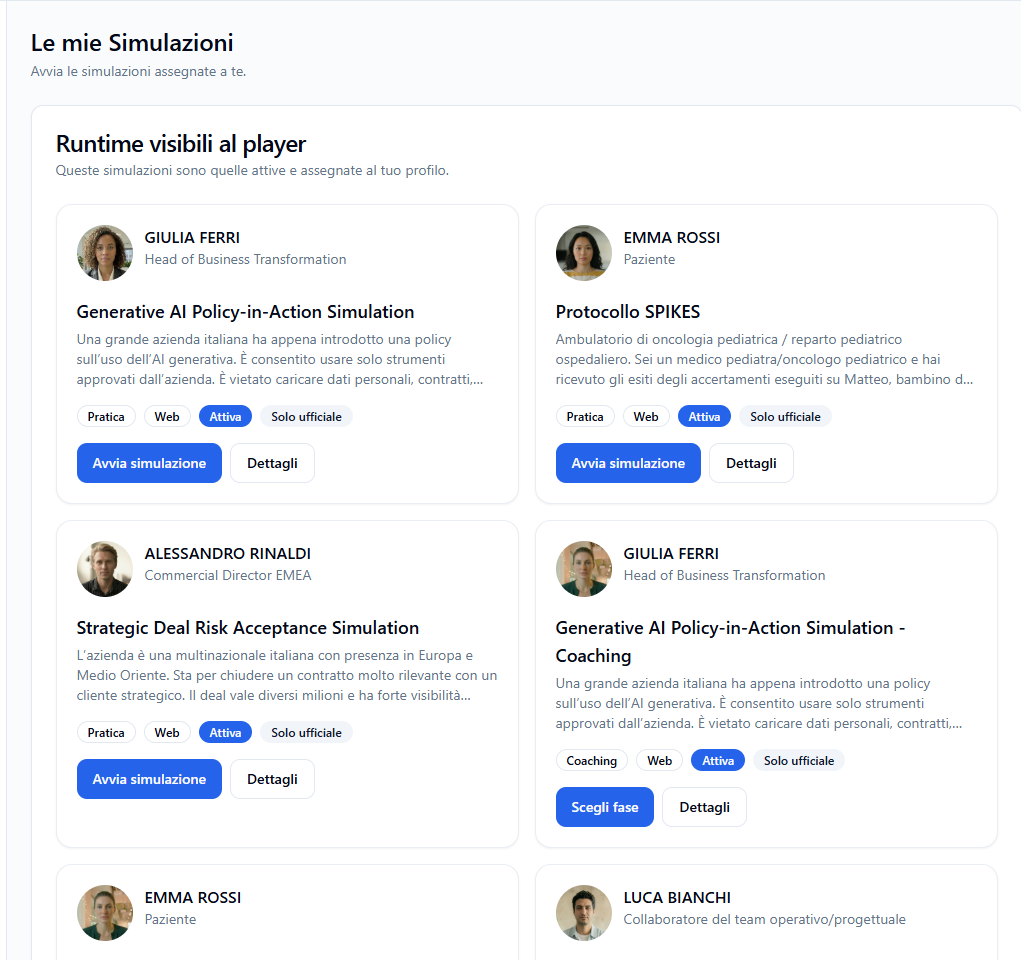
The Runtimes visible to player section shows the simulations available to the user.
Each simulation is presented as a card.
The card contains:
- avatar image;
- avatar name;
- avatar role;
- simulation title;
- brief scenario description;
- informational badges;
- action buttons.
Examples of avatars shown:
- GIULIA FERRI – Head of Business Transformation;
- EMMA ROSSI – Patient;
- ALESSANDRO RINALDI – Commercial Director EMEA;
- LUCA BIANCHI – Operational/project team member.
Simulation badges #
Various badges may appear on the card.
Practice #
Indicates that the simulation is available in practice mode.
In this mode, the Player directly starts the full conversation with the avatar.
Coaching #
Indicates that the simulation is available in coaching mode.
In this mode, the Player does not immediately start the full simulation, but can choose a specific phase to train on.
Web #
Indicates that the simulation is accessible from a browser.
Active #
Indicates that the simulation is currently available.
Official only #
Indicates that the Player can only access the official version of the runtime simulation.
Simulations in Practice mode #
Simulations in Practice mode allow the Player to conduct a full conversation with the avatar.
In this mode, the card shows the button:
Start simulation
By clicking Start simulation, the Player enters the simulation room and begins the interaction with the avatar.
Practice mode is useful for training on a complete scenario, putting into play the communication skills required by the simulation.
Simulations in Coaching mode #
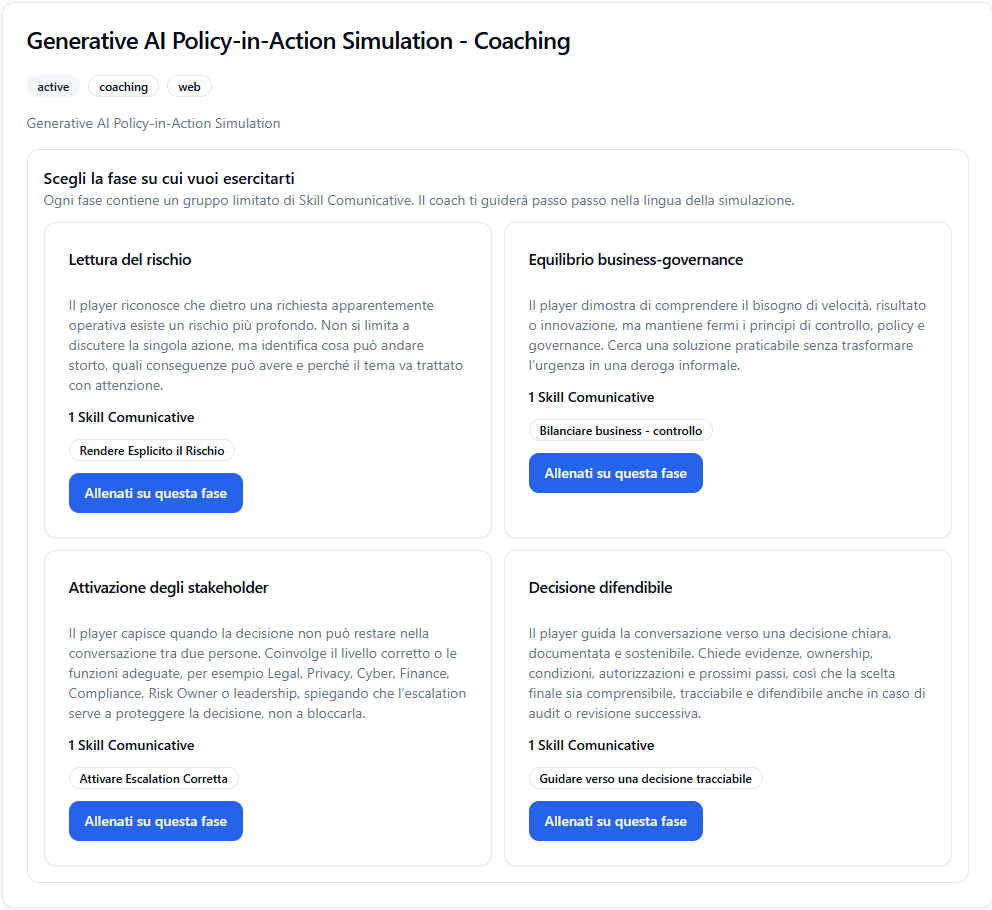
Simulations in Coaching mode allow the Player to train on specific parts of the conversation.
In this mode, the card shows the button:
Choose phase
By clicking Choose phase, the Player accesses the screen with available phases.
Each phase contains:
- phase title;
- objective description;
- linked Communication Skills;
- Train on this phase button.
Examples of phases:
- Risk assessment
- Business-governance balance
- Stakeholder activation
- Defensible decision
Each phase contains a limited group of Communication Skills.
The coach guides the Player step by step in the language provided by the simulation.
To start training on a phase, click:
Train on this phase
Simulation details #
Each card shows the button:
Details
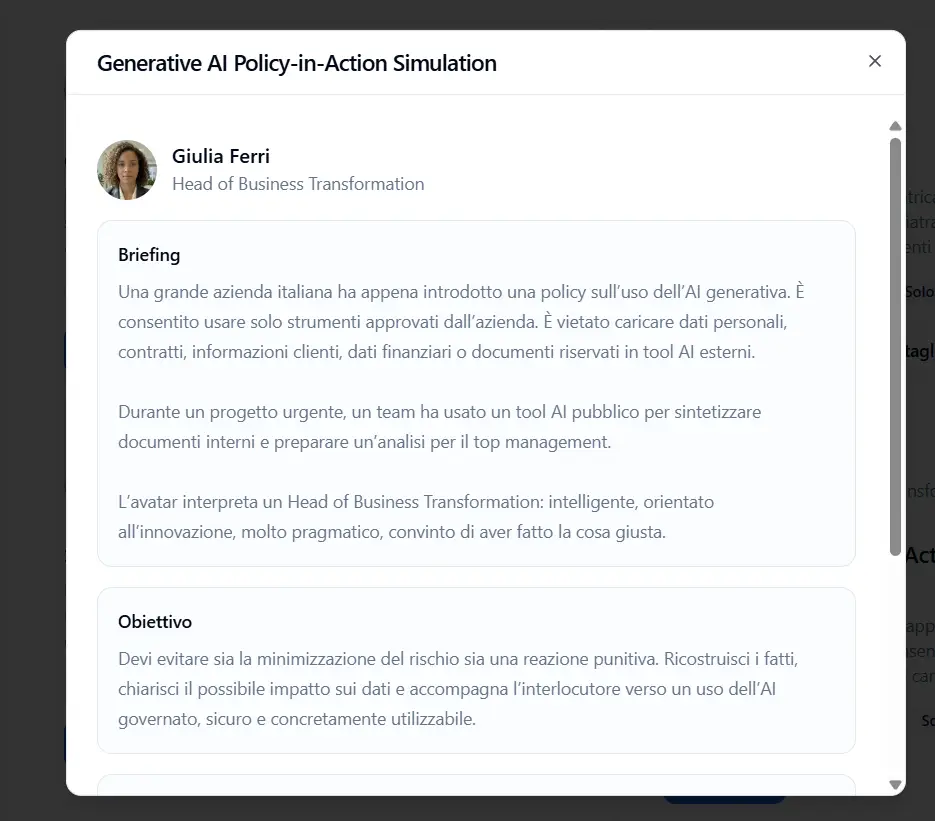
By clicking Details, the Player can review the main information about the simulation before starting.
The details window may show:
- simulation name;
- avatar and role;
- briefing;
- objective;
- useful information;
- any additional context information.
Briefing #
The Briefing describes the simulation context.
It serves to explain to the Player:
- what situation they are about to face;
- who the interlocutor is;
- what problem they need to manage;
- which scenario elements are important.
Objective #
The Objective section indicates what the Player should try to achieve during the conversation.
The objective helps guide the Player’s behavior and clarify what result is expected.
Example:
The Player must reconstruct the facts, clarify the possible impact on data, and guide the interlocutor toward a governed, secure, and practically usable AI.
Useful information #
The Useful information helps the Player prepare before starting.
It may include suggestions such as:
- don’t appear anti-innovation;
- acknowledge the need for efficiency;
- clarify risks without taking a punitive tone;
- guide the interlocutor toward a governed solution.
Simulation room #
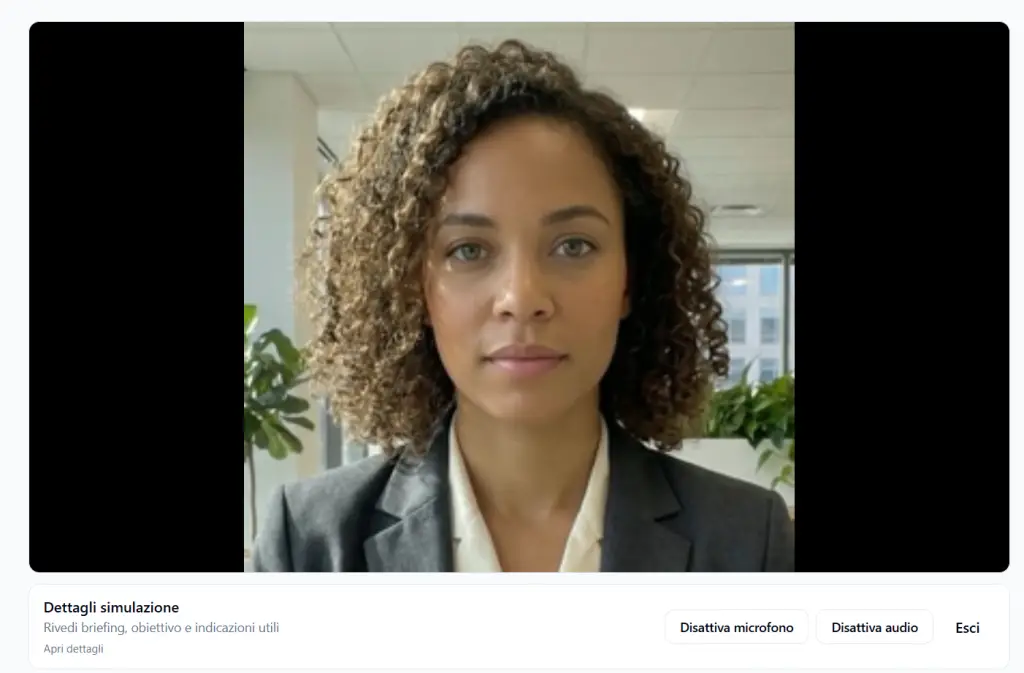
When the Player starts a simulation, they enter the conversation room with the avatar.
The screen shows:
- video or animated image of the avatar;
- Simulation details area;
- audio controls;
- exit button.
Details during the simulation #
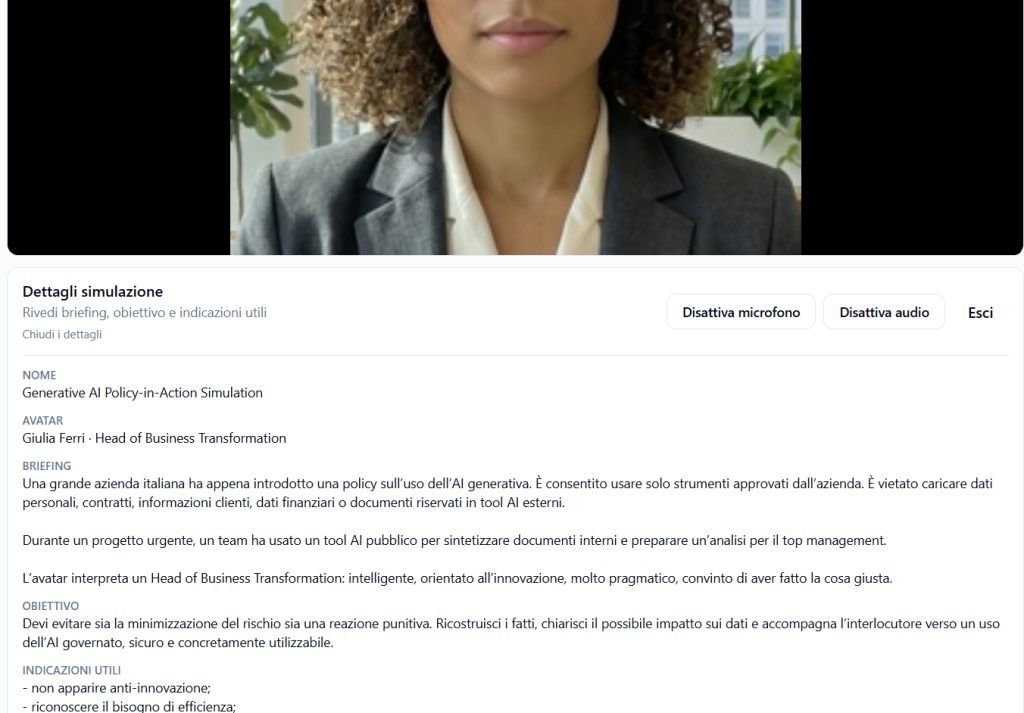
During the simulation, the panel is present:
Simulation details
From here, the Player can review:
- briefing;
- objective;
- useful information.
The Open details link expands the section and shows the available information.
The Close details link collapses the section.
This feature is useful when the Player wants to quickly reread the context without exiting the simulation.
Audio controls #
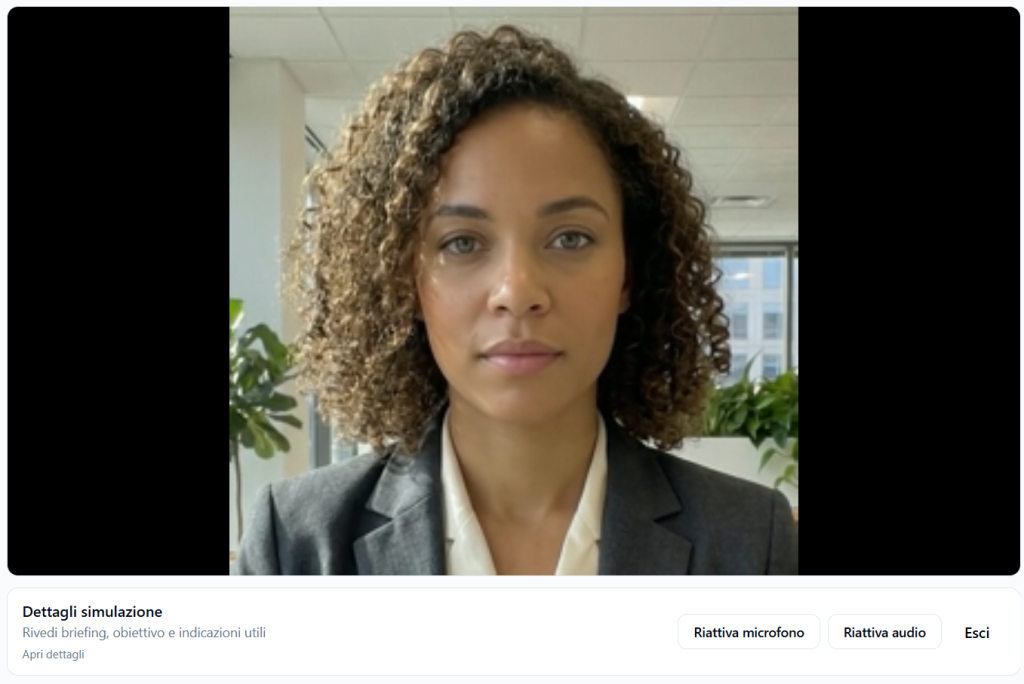
During the simulation, controls are available to manage the microphone and audio.
Mute microphone #
The Mute microphone button allows the Player to temporarily turn off their microphone.
When the microphone is muted, the avatar does not receive the Player’s voice.
Unmute microphone #
The Unmute microphone button allows you to turn the microphone back on and resume speaking with the avatar.
Mute audio #
The Mute audio button allows you to silence the output audio.
When audio is muted, the Player does not hear the avatar’s voice.
Unmute audio #
The Unmute audio button allows you to restore listening to the avatar’s voice.
Exiting the simulation #
The Exit button allows the Player to leave the simulation.
It is advisable to use this command only when you want to interrupt or end the experience.
Player safety protection #
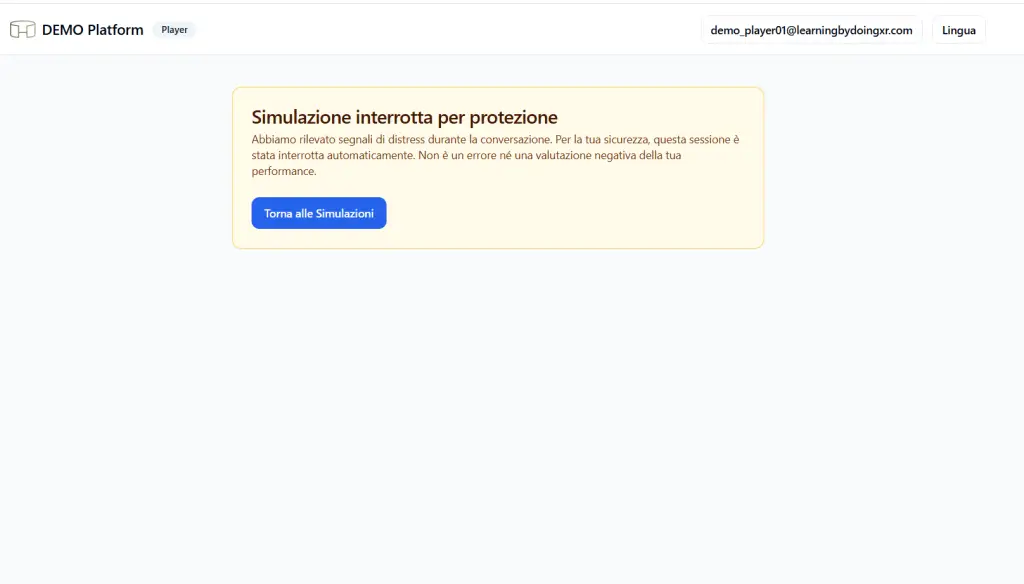
The platform includes a Player protection system.
If distress signals beyond the configured safety threshold are detected during the conversation, the simulation may be automatically interrupted.
In this case, a message is shown such as:
Simulation interrupted for protection
The message explains that:
- distress signals were detected during the conversation;
- the session was automatically interrupted for safety;
- this is not a technical error;
- it does not represent a negative evaluation of performance.
What to do if the simulation is interrupted for protection #
If the protection screen appears, the Player can click:
Back to Simulations
This button returns to the list of available simulations.
The interruption serves to protect the Player and should not be interpreted as a failure.
Difference between Practice and Coaching #
Practice #
Practice mode is designed to complete the entire simulation.
The Player enters the scenario and converses directly with the avatar until the conclusion of the experience.
It is suitable for training on a complete conversation.
Coaching #
Coaching mode is designed to train on a specific phase.
The Player selects a phase and works on a limited group of Communication Skills.
It is suitable for improving a specific behavior before tackling a complete simulation.
Best practices for the Player #
Before starting a simulation, it is advisable to:
- read the briefing;
- check the objective;
- open the details if the context is not clear;
- verify that the microphone and audio are active;
- choose the correct mode: Practice or Coaching;
- use Coaching when you want to work on a specific phase;
- use Practice when you want to tackle the entire scenario;
- remember that an interruption for protection is not a negative evaluation.
Final result #
The My Simulations section allows the Player to access assigned experiences.
The Player can:
- start simulations in Practice mode;
- choose a training phase in Coaching mode;
- review details before and during the simulation;
- manage microphone and audio;
- exit the session;
- be automatically protected in case of distress signals.
The objective of the section is to offer the Player simple, safe, and guided access to available simulations.


