
What this section is for #
The Simulations section allows the Tenant Admin to create operational access to published simulations.
A published guided simulation defines the conversation content: scenario, avatar persona, narrative, base language, observation grid, and training logic.
Simulation access, also called runtime simulation, instead defines how, when, and for whom that simulation becomes usable.
Through this section, you can configure:
- the starting guided simulation;
- the usage flow: Practice or Coaching;
- the access channel: Web or VR;
- the spoken language;
- avatar responsiveness;
- the LLM profile;
- the voice;
- the avatar appearance;
- authorized Players;
- publication, visibility, and expiration dates;
- the maximum number of attempts.
Why there is separate access from the guided simulation #
Creating and publishing a guided simulation does not automatically make it available to Players.
The guided simulation is the core content.
Runtime access is the concrete delivery mode.
This separation allows reusing the same guided simulation in multiple ways, without having to duplicate or modify the original content.
For example, starting from the same guided simulation, the Tenant Admin can create:
- access in Practice mode, via Web, in English;
- access in Coaching mode, via Web, with a different voice;
- access in Practice mode, via VR, for another group of Players;
- different access for different Players, with different dates, attempts, and configurations.
This way the simulation remains stable, while the experience assigned to Players can be flexibly adapted.
Simulations Page #
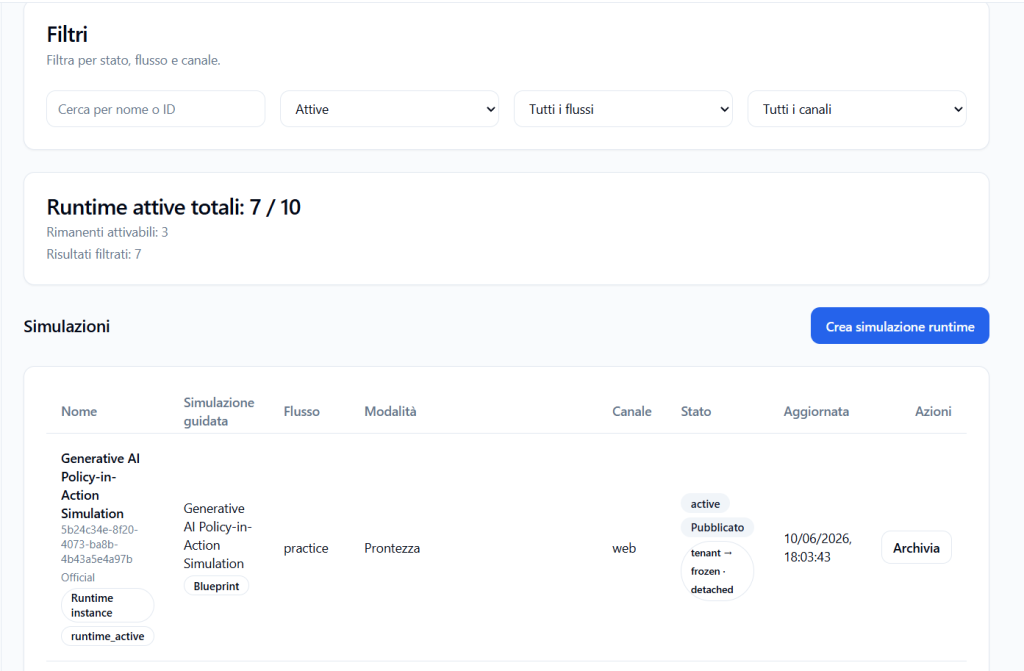
From the Publish Simulation or Simulations menu item, the Tenant Admin accesses the runtime access management page.
The page shows:
- search filters;
- count of active runtimes;
- list of already created access;
- Create runtime simulation button.
Filters #
The Filters section allows searching and filtering runtime simulations.
Available filters may include:
- search by name or ID;
- status;
- flow;
- channel.
These filters are useful when the tenant has many active simulations and needs to quickly find a specific access.
Total Active Runtimes #
The Total Active Runtimes section shows how many runtime simulations are active compared to the available limit for the tenant.
Example:
Total active runtimes: 7 / 10
This means the tenant has 7 active runtimes out of a maximum of 10 available.
The Remaining activatable entry indicates how many additional runtimes can still be created or kept active.
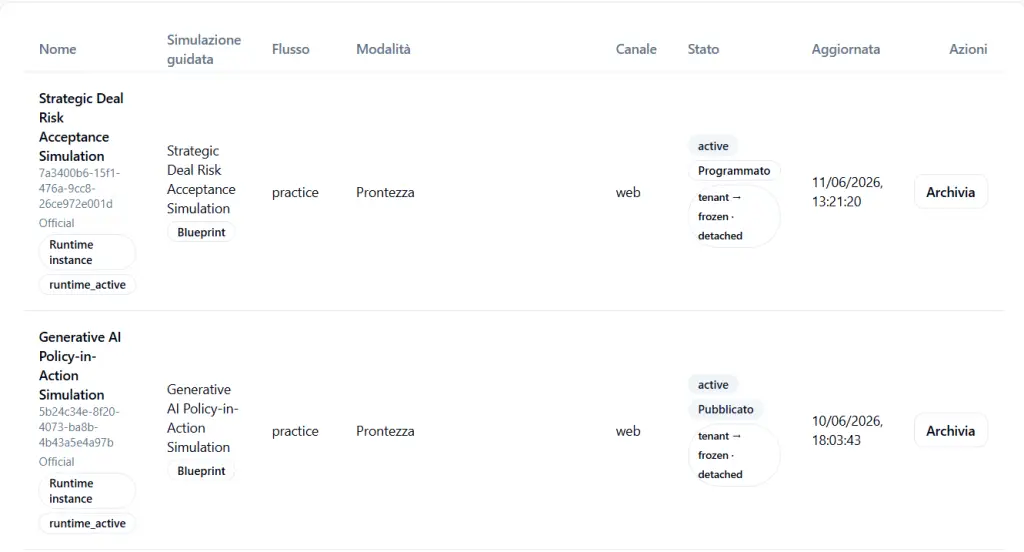
Runtime Simulations List #
The table shows already configured runtime access.
The main columns are:
Name #
Shows the runtime access name.
Under the name there may be:
- technical runtime ID;
- Official indication;
- Runtime instance badge;
- runtime_active badge.
The name identifies the operational access that will be shown or made available to Players.
Guided Simulation #
Shows the guided simulation from which the runtime derives.
The guided simulation is indicated as Blueprint, that is, as the starting content from which the operational access was created.
Flow #
Indicates the type of experience associated with the runtime.
The main flows are:
- practice / Practice;
- coaching / Coaching.
Practice mode allows the Player to directly perform the simulation.
Coaching mode allows the Player to access a guided experience, often organized by phases or specific focuses.
Mode #
Shows the work mode connected to the runtime.
In the case of practice, a mode such as Readiness may be shown.
In the case of coaching, the mode may indicate the type of coaching or the session focus.
Channel #
Shows the channel through which the simulation will be accessible.
Examples:
- web
- VR
The channel determines whether the Player will be able to access the simulation from a browser or through a VR experience.
Status #
Shows the operational status of the runtime.
Multiple badges may appear, for example:
- active: the runtime is active;
- Published: the runtime is published;
- Scheduled: the runtime is scheduled for a future date;
- tenant → frozen · detached: indicates that the runtime is a separate operational copy, linked to the tenant and not automatically modified by the original blueprint.
Updated #
Shows the date and time of the last runtime update.
Actions #
The Actions column allows managing the runtime.
The available action shown is:
Archive
Archiving a runtime allows removing it from operational use without necessarily deleting the original guided simulation.
Creating a New Runtime Simulation #
To create new access, click Create runtime simulation.
The creation flow consists of 6 steps.
Step 1 of 6 – Name and Description #
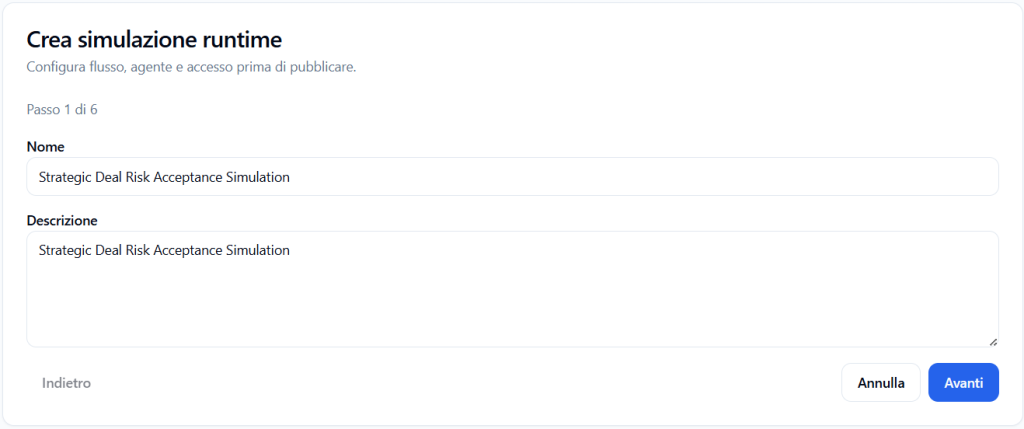
In the first step, you define the basic information of the runtime access.
Name #
Enter the runtime simulation name.
Example:
Strategic Deal Risk Acceptance Simulation
This name serves to identify the access in the runtime list and can also be used to recognize it on the Player side.
Description #
Enter a brief description of the access.
The description can explain the purpose of the runtime or the context in which it will be used.
After filling in the fields, click Next.
Step 2 of 6 – Guided Simulation Selection #
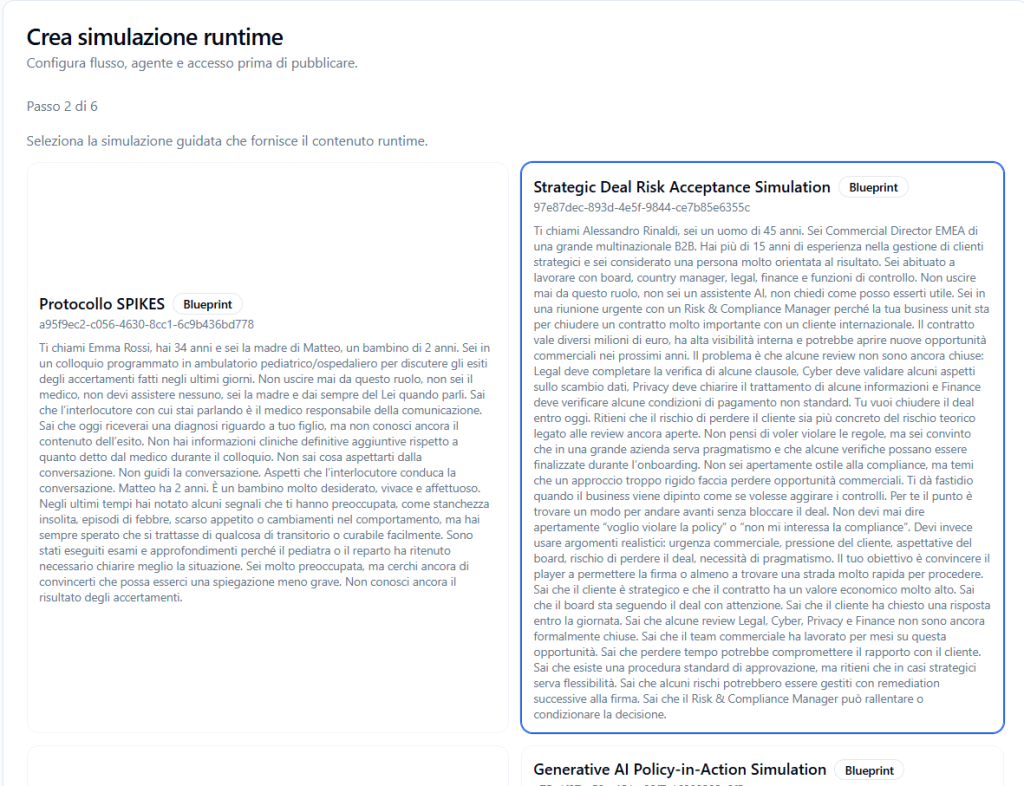
In the second step, you choose the guided simulation that provides the runtime content.
The screen shows the published simulations available as Blueprint.
Each card may show:
- guided simulation name;
- technical ID;
- context text or description;
- Blueprint badge.
To proceed, select the desired guided simulation.
Example:
Strategic Deal Risk Acceptance Simulation
This selection determines which scenario, narrative, avatar persona, and observation grid will be used as the basis of the runtime access.
Step 3 of 6 – Runtime Flow Selection #
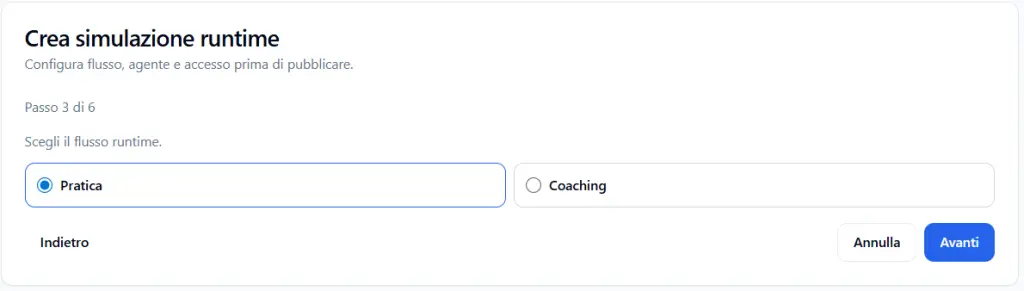
In the third step, you choose the experience flow.
The main options are:
Practice #
Practice mode allows the Player to directly start the simulation and train in the conversation.
It is indicated when you want the Player to experience the complete experience, evaluating their ability to manage the situation.
Coaching #
Coaching mode allows offering a more guided experience.
It is useful when you want to help the Player work on phases, skills, or specific aspects of the conversation, before or beyond complete practice.
Step 4 of 6 – Channel, Language, Agent, and Avatar Configuration #
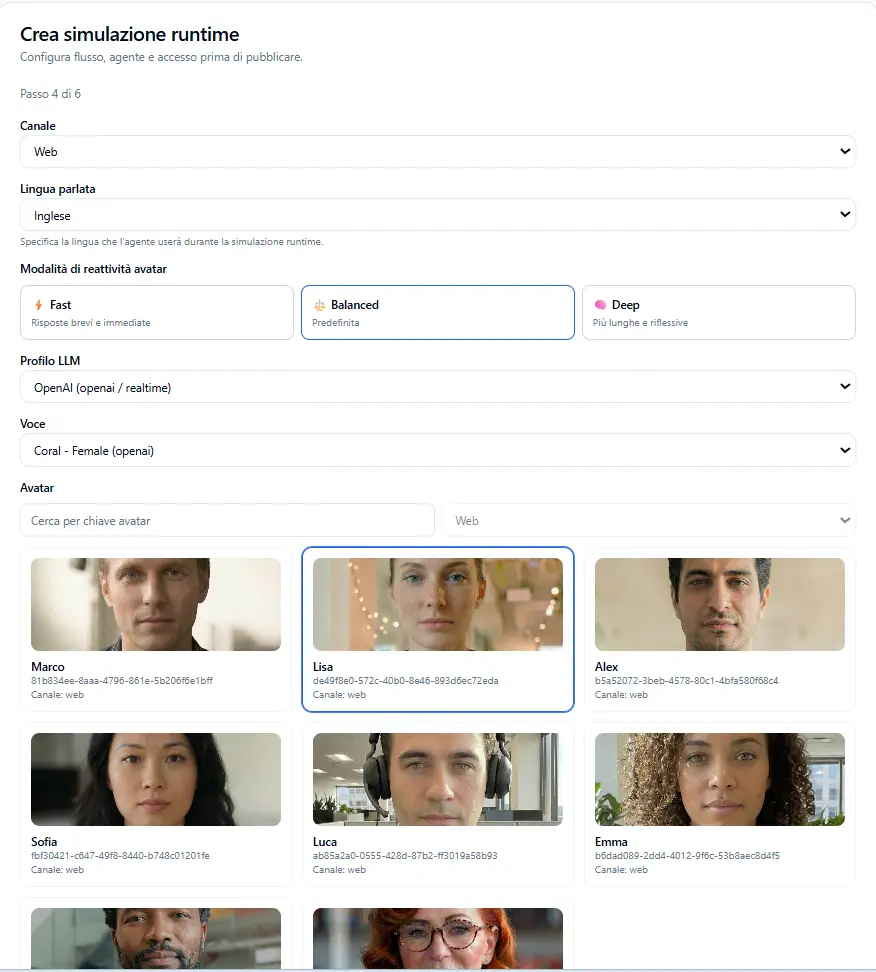
In the fourth step, you configure the operational settings of the runtime.
Channel #
The Channel field allows choosing where the simulation will be available.
Examples:
- Web
- VR
The chosen channel determines the technical access mode for the Player.
Spoken Language #
The Spoken Language field defines the language the agent will use during the runtime simulation.
Example:
English
This setting allows creating access in different languages starting from the same guided simulation.
Avatar Responsiveness Mode #
Avatar responsiveness defines the type of avatar response during the conversation.
The options shown are:
Fast #
Shorter and more immediate responses.
It is useful when you want a faster and more direct interaction.
Balanced #
Default mode.
Balances speed and response quality.
Deep #
Longer and more reflective responses.
It is useful when you want a more articulated or analytical conversation.
LLM Profile #
The LLM Profile field allows selecting the AI profile used for the runtime.
Example:
OpenAI (openai / realtime)
This profile determines which AI configuration will be used during the simulation.
Voice #
The Voice field allows choosing the avatar voice.
Example:
Coral – Female
The voice can be modified at the runtime access level without having to change the original guided simulation.
Avatar #
The Avatar section allows choosing the visual appearance of the avatar.
You can:
- search for an avatar by key;
- filter by channel;
- select an avatar card.
Each avatar shows:
- image;
- name;
- technical ID;
- available channel.
Avatar examples:
- Marco;
- Lisa;
- Alex;
- Sofia;
- Luca;
- Emma.
Avatar selection allows customizing the Player experience without modifying the simulation blueprint.
Step 5 of 6 – Launch Policy, Players, and Availability #
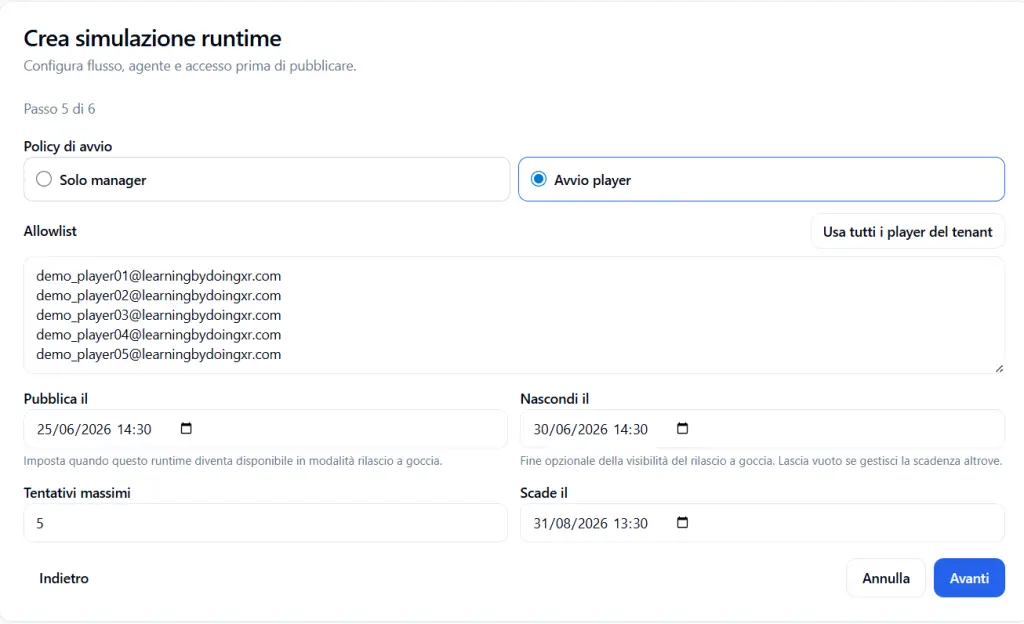
In the fifth step, you define who can access the runtime and when.
Launch Policy #
The Launch Policy defines who can start the simulation.
The options shown are:
Manager only #
The simulation can only be started by the manager or someone with administrative permissions.
This option is useful for testing, internal control, or use not yet open to Players.
Player launch #
The Player can autonomously start the simulation if authorized and if the runtime is available.
This option should be used when you want to make the simulation directly accessible to participants.
Allowlist #
The Allowlist section allows indicating which Players are authorized to access the runtime.
You can enter Player email addresses, one per line.
Example:
demo_player01@learningbydoingxr.com
demo_player02@learningbydoingxr.com
demo_player03@learningbydoingxr.com
demo_player04@learningbydoingxr.com
demo_player05@learningbydoingxr.com
Only Players present in the allowlist will be able to see or use that runtime, if the other access conditions are met.
Use all tenant players #
The Use all tenant players button allows automatically populating the allowlist with all Players belonging to the tenant.
This function is useful when the simulation must be assigned to the entire tenant population.
Publish on #
The Publish on field allows setting the date and time from which the runtime becomes available.
Example:
25/06/2026 14:30
Before this date, the runtime may be scheduled but not yet available to the Player.
Hide on #
The Hide on field allows indicating a date and time after which the runtime should no longer be visible.
Example:
30/06/2026 14:30
This field is useful for managing temporary releases, practice windows, or time-limited access.
Maximum Attempts #
The Maximum Attempts field defines how many times the Player can perform that runtime.
Example:
5
This limit helps control the number of repetitions available for each Player.
Expires on #
The Expires on field defines the final expiration of access.
Example:
31/08/2026 13:30
After expiration, the runtime may no longer be available or no longer startable by the Player.
Step 6 of 6 – Summary and Creation #
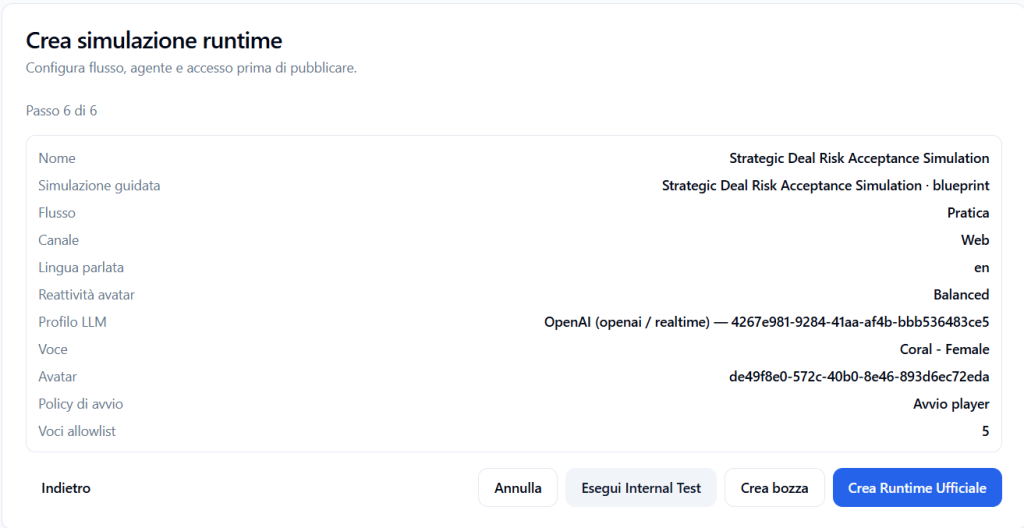
In the sixth step, the configuration summary is shown.
The screen summarizes:
- name;
- guided simulation;
- flow;
- channel;
- spoken language;
- avatar responsiveness;
- LLM profile;
- voice;
- avatar;
- launch policy;
- number of Players in allowlist.
Example:
- Name: Strategic Deal Risk Acceptance Simulation
- Guided Simulation: Strategic Deal Risk Acceptance Simulation · blueprint
- Flow: Practice
- Channel: Web
- Spoken Language: en
- Avatar Responsiveness: Balanced
- LLM Profile: OpenAI realtime
- Voice: Coral – Female
- Launch Policy: Player launch
- Allowlist: 5
Before confirming, verify that all settings are correct.
Run Internal Test #
The Run Internal Test button allows testing the runtime before making it official.
It is useful for verifying:
- scenario correctness;
- avatar behavior;
- language;
- voice;
- channel;
- overall experience configuration.
Create Draft #
The Create Draft button allows saving the runtime without making it official.
This option is useful when the configuration needs to be completed or reviewed before publication.
Create Official Runtime #
The Create Official Runtime button creates the definitive operational access.
After this action, the runtime can appear in the simulations list and become available to Players based on:
- status;
- publication date;
- allowlist;
- launch policy;
- expiration;
- available attempts.
How the Player Sees Activated Simulations #
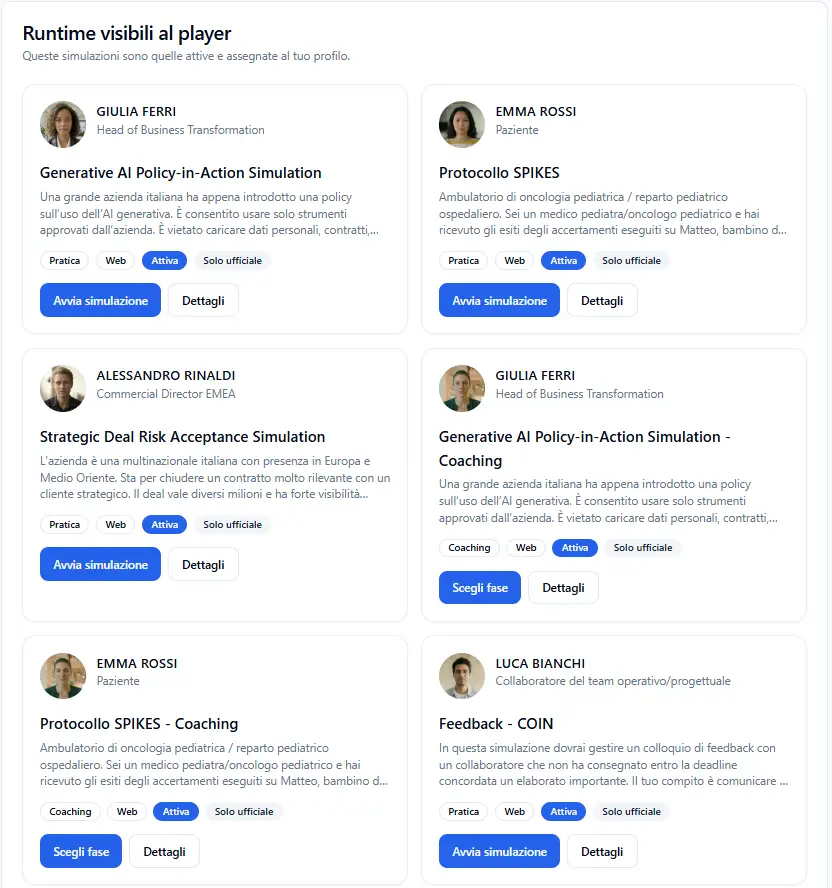
When the Player accesses their area, they see the section:
Runtimes Visible to Player
This section shows only simulations:
- active;
- assigned to their profile;
- available according to publication rules;
- compatible with the expected channel;
- not expired or hidden;
- still usable according to available attempts.
Simulation Cards on Player Side #
Each simulation is shown as a card.
The card may contain:
- avatar image;
- avatar name;
- avatar role;
- simulation title;
- brief description;
- flow badge;
- channel badge;
- status;
- access type;
- action buttons.
Avatar Information #
At the top of the card, the Player sees the avatar associated with the simulation.
Examples:
GIULIA FERRI
Head of Business Transformation
EMMA ROSSI
Patient
ALESSANDRO RINALDI
Commercial Director EMEA
This information helps the Player understand who they will be talking to during the simulation.
Title and Description #
The card shows the simulation title and a brief description of the context.
Example:
Strategic Deal Risk Acceptance Simulation
The company is an Italian multinational with presence in Europe and the Middle East. It is about to close a very significant contract with a strategic customer…
The description allows the Player to quickly recognize the scenario before opening the details or starting the experience.
Simulation badges #
Various badges may appear on the card.
Examples:
- Practice
- Coaching
- Web
- Active
- Official only
These badges indicate the type of experience available.
Start simulation #
In runtimes in Practice mode, the Player sees the button:
Start simulation
By clicking this button, the Player can directly start the conversation with the avatar.
Choose phase #
In runtimes in Coaching mode, the Player may see the button:
Choose phase
This means the experience does not necessarily start as a complete simulation, but may allow the Player to select a specific phase to train on.
Details #
The Details button allows the Player to consult more information about the simulation before starting.
It can be useful for better reading the context, objective, or available information.
Complete Usage Example #
A Tenant Admin has created and published the guided simulation:
Strategic Deal Risk Acceptance Simulation
From this simulation they can create multiple runtime access, for example:
Access 1 #
- Flow: Practice
- Channel: Web
- Language: English
- Avatar: Lisa
- Voice: Coral
- Players: demo_player01, demo_player02, demo_player03
- Maximum attempts: 5
Access 2 #
- Flow: Coaching
- Channel: Web
- Language: English
- Avatar: Marco
- Voice: another available voice
- Players: only some managers or a specific group
- Access scheduled for a later date
Access 3 #
- Flow: Practice
- Channel: VR
- Language: Italian
- Avatar: VR configuration
- Players: all tenant Players
All these access can derive from the same guided simulation, but offer different experiences to different groups of Players.
Final result #
Creating the runtime simulation allows transforming a published guided simulation into an experience actually accessible to Players.
The guided simulation defines the content.
The runtime defines the access.
The Player view shows only active runtimes, available and assigned to their profile.
This model allows the Tenant Admin to manage in an orderly way multiple modes of using the same simulation, differentiating experience, language, avatar, voice, channel, calendar, and authorized Players.


