
What this section is for #
The Global Simulation Catalog section allows the Provider to browse and clone complete simulations made available by the platform.
These simulations are designed as ready-to-use templates and can be imported into the Provider’s workspace.
A clonable global simulation already includes:
- simulation scenario;
- Player briefing;
- Player objective;
- language;
- Avatar Persona;
- any avatar behavior changes;
- Observation Grid;
- Communication Skills linked to the phases;
- basic training configuration.
This allows the Provider to start from already structured simulations without having to build every element from scratch.
Available global simulations #
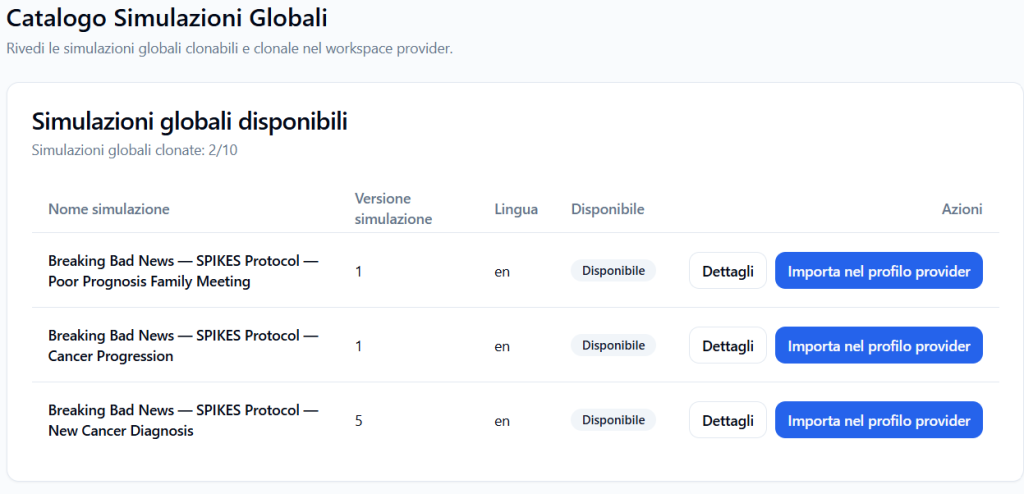
The Available global simulations section shows the list of clonable simulations from the platform’s global library.
Each row represents a simulation available for import into the Provider profile.
The main columns are:
Simulation name #
Shows the title of the global simulation.
Example:
Breaking Bad News — SPIKES Protocol — New Cancer Diagnosis
The name helps the Provider quickly understand the theme of the simulation and the training context.
Simulation version #
Shows the numerical version of the simulation.
Example:
5
The version allows for distinguishing updates or subsequent variants of the same simulation.
Language #
Indicates the primary language of the simulation.
Example:
en
In this case, the simulation is configured in English.
Available #
Indicates if the simulation can be cloned.
When the status is Available, the Provider can import the simulation into their profile, provided they still have availability in their membership plan.
Actions #
The Actions column allows you to:
- open simulation details;
- import the simulation into the Provider profile;
- track the cloning status if the import is in progress.
Clonable simulations limit #
The number of global simulations already cloned compared to the limit available in the Provider’s plan is shown at the top.
Example:
Global simulations cloned: 1/10
This means the Provider has already cloned 1 global simulation out of a maximum of 10 allowed by their membership plan.
The maximum number of clonable simulations depends on the active Provider plan.
When the limit is reached, it may not be possible to import further global simulations unless the plan is changed or limits are increased.
Viewing details before cloning #
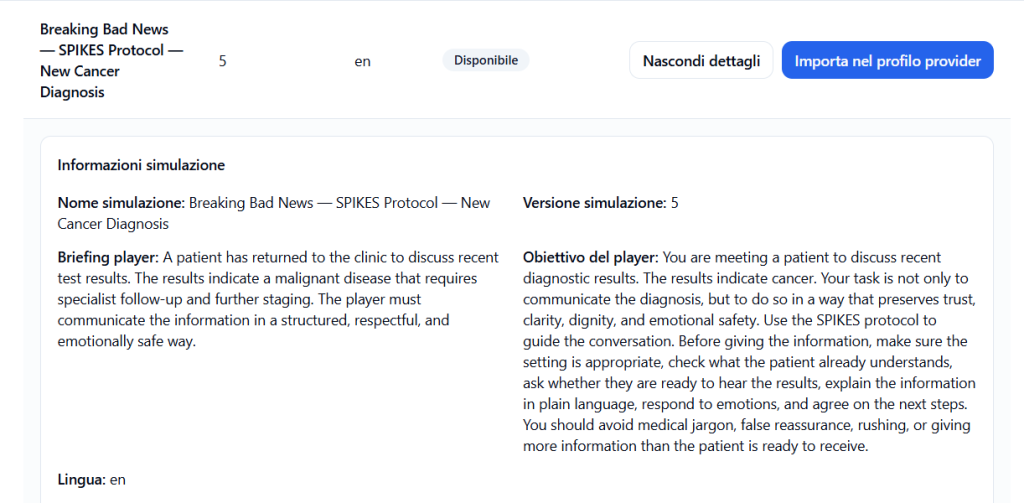
Before importing a simulation, the Provider can click on Details.
The details section allows you to verify what the simulation contains before cloning it into your workspace.
This step is important because it allows you to understand if the simulation is suitable for your training context.
Simulation information #
The main information of the simulation is shown in the details.
They may include:
- simulation name;
- simulation version;
- Player briefing;
- Player objective;
- language.
Player Briefing #
The Player Briefing is the text that will be shown to the participant before the simulation starts.
It serves to explain:
- the context of the scene;
- the situation to be addressed;
- the Player’s role;
- the information needed to start the conversation.
Player Objective #
The Player Objective defines what the participant should try to achieve during the simulation.
Example:
The Player must communicate a difficult diagnosis in a structured, respectful, and safe manner, using the SPIKES protocol to guide the conversation.
Observation Grid #
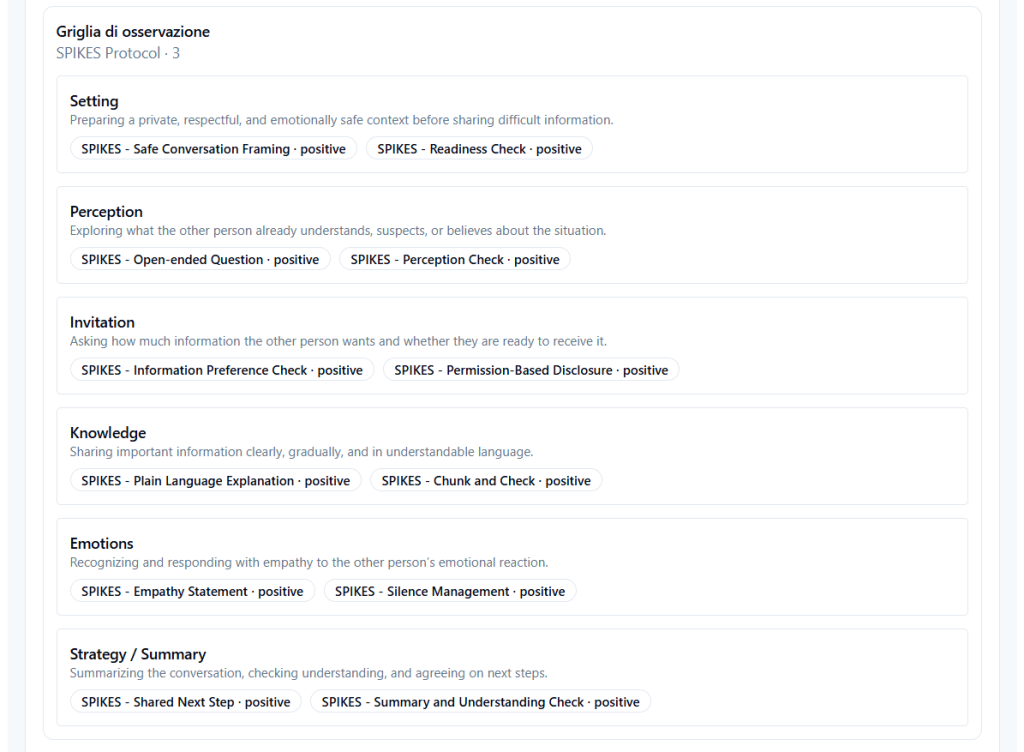
Global simulations include an already configured Observation Grid.
The grid organizes the phases of the conversation and the Communication Skills that the system will observe during the session.
Example of phases in a SPIKES simulation:
- Setting
- Perception
- Invitation
- Knowledge
- Emotions
- Strategy / Summary
Each phase contains the expected Communication Skills.
Examples:
- SPIKES – Safe Conversation Framing;
- SPIKES – Readiness Check;
- SPIKES – Open-ended Question;
- SPIKES – Perception Check;
- SPIKES – Empathy Statement;
- SPIKES – Shared Next Step.
This means the Provider does not have to manually create the grid and skills from scratch: they are imported along with the simulation.
Avatar Persona #
Each global simulation can include an Avatar Persona already linked to the scenario.
The Avatar Persona defines the behavioral pattern of the virtual interlocutor.
In the details, it is possible to consult the description of the Avatar Persona before cloning.
Example:
Spikes — anxious patient awaiting results
A person waiting for important medical results. The patient is anxious, tense, and tries to remain rational, but fears the results may indicate something serious.
Avatar Persona information sheet #
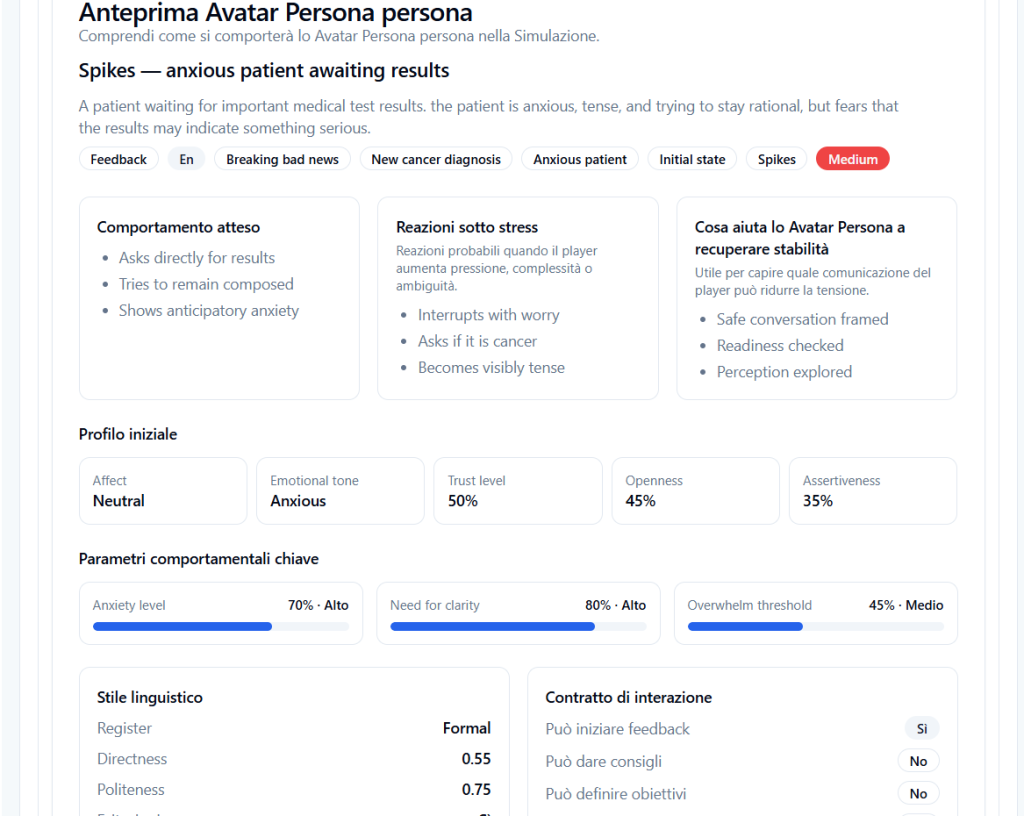
The Provider can view an information sheet for the Avatar Persona to understand its behavior before using the simulation.
The sheet can show:
- expected behavior;
- reactions under stress;
- what helps the Avatar Persona regain stability;
- initial profile;
- key behavioral parameters;
- linguistic style;
- interaction contract.
Expected behavior #
Describes how the Avatar Persona tends to behave in the conversation.
Example:
- asks for results directly;
- tries to remain composed;
- shows anticipatory anxiety.
Reactions under stress #
Describes what can happen when pressure increases.
Example:
- interrupts with concern;
- asks if it is cancer;
- becomes visibly tense.
What helps the Avatar Persona regain stability #
Indicates which Player behaviors can reduce tension and make the interlocutor more stable.
Example:
- safe and well-framed conversation;
- readiness check;
- exploration of the patient’s perception.
Initial profile of the Avatar Persona #
The sheet can also show the initial profile of the avatar, for example:
- affect;
- emotional tone;
- trust level;
- openness;
- assertiveness.
This data helps the Provider understand the emotional and relational state from which the virtual interlocutor starts.
Key behavioral parameters #
The sheet can include parameters such as:
- anxiety level;
- need for clarity;
- overload threshold;
- openness to dialogue;
- trust level;
- assertiveness.
These parameters describe the expected behavior of the Avatar Persona in a more structured way.
Avatar Behavior Change #
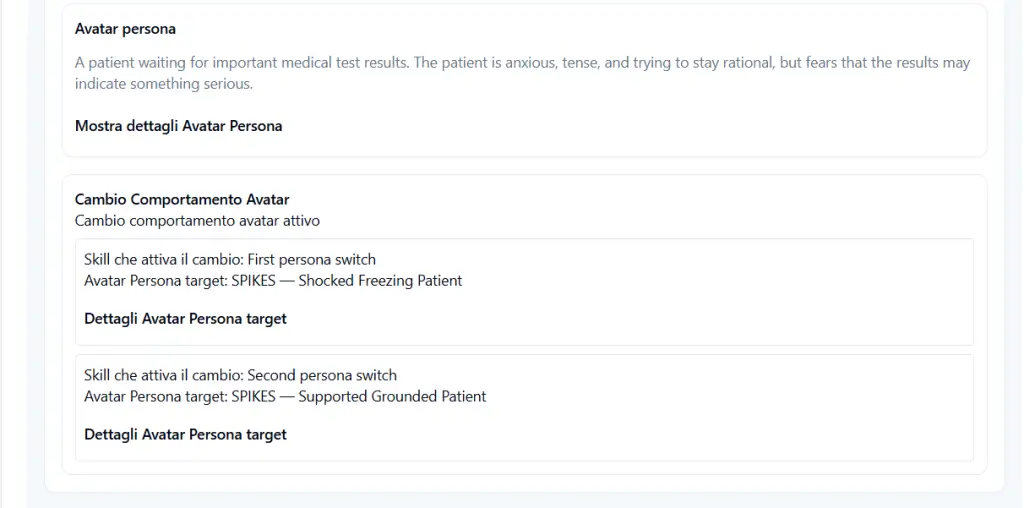
Some global simulations may also include the Avatar Behavior Change.
This function allows the avatar to switch from an initial persona to a target persona when the Player activates certain Communication Skills.
The details may show:
- Skill that triggers the change;
- Target Avatar Persona;
- details of the target persona.
Example:
- Skill that triggers the change: First persona switch;
- Target Avatar Persona: SPIKES — Shocked Freezing Patient.
Or:
- Skill that triggers the change: Second persona switch;
- Target Avatar Persona: SPIKES — Supported Grounded Patient.
This allows the Provider to know in advance how the avatar’s behavior may evolve during the simulation.
Importing a simulation into the Provider profile #
To clone a global simulation, click on:
Import into provider profile
The system starts the process of cloning the simulation into the Provider workspace.
Cloning creates a Provider copy of the global simulation.
The original global simulation remains unchanged in the platform library.
What is cloned #
When a global simulation is imported into the Provider profile, the main elements needed to use it in your environment are copied.
Cloning can include:
- guided simulation;
- briefing;
- Player objective;
- narrative;
- language;
- Avatar Persona;
- any target Avatar Personas for behavior change;
- Observation Grid;
- grid phases;
- Communication Skills;
- links between phases and skills;
- training configurations provided by the template.
This allows the Provider to obtain a complete simulation ready to be adapted or distributed according to their operational flow.
Cloning in progress #
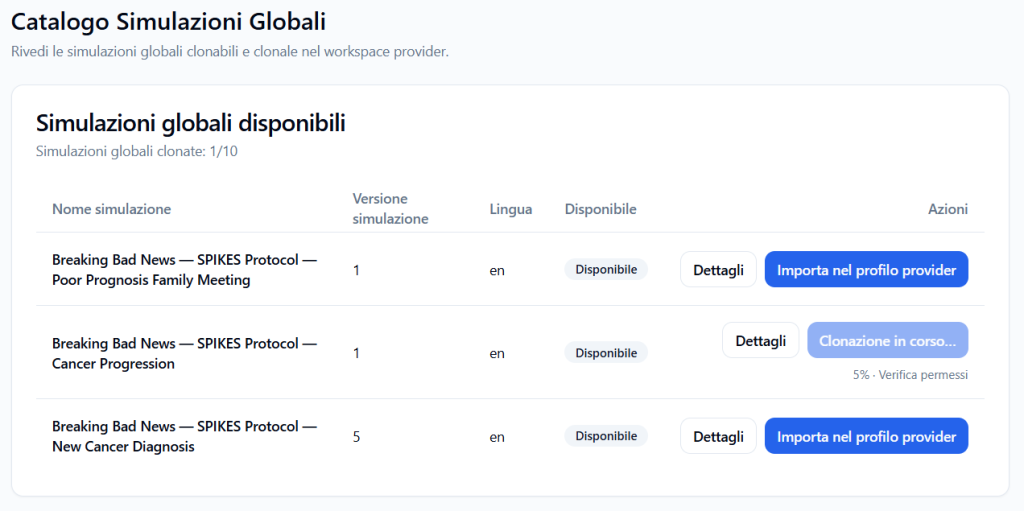
During import, a status such as the following may appear:
Cloning in progress…
The system can also show a progress percentage and the current phase of the process.
Example:
5% · Verifying permissions
This indicates that the platform is performing the necessary operations to copy the simulation into the Provider workspace.
During this phase, it is advisable to wait for the process to complete before using the cloned simulation.
Already imported simulations #
The Already imported simulations section shows the Provider copies created from the global library.
If no simulation has been imported yet, the page shows a message such as:
No simulations imported
Provider copies cloned from the global library will appear here.
This section allows the Provider to distinguish simulations still available in the global catalog from those already imported into their profile.
Difference between global simulation and Provider copy #
Global simulation #
It is the original template provided by the platform.
It is intended as starting content, designed and validated at a global level.
Provider copy #
It is the version cloned into the Provider’s workspace.
This copy is managed by the Provider profile according to the permissions and operational flow provided by the platform.
Cloning does not modify the original global template.
Why check details before cloning #
Before importing a simulation, it is advisable to check the details to verify:
- if the scenario is consistent with the training target;
- if the Avatar Persona is suitable for the context;
- if the Observation Grid measures the desired skills;
- if the briefing and the Player’s objective are consistent;
- if the avatar behavior change is useful for the simulation;
- if the difficulty level is appropriate for the Players.
This helps avoid unnecessary cloning and correctly use the limit available in the Provider plan.
Practical example #
The Provider wants to offer a simulation on communicating a difficult diagnosis.
In the global catalog, they find:
Breaking Bad News — SPIKES Protocol — New Cancer Diagnosis
Before cloning it, they open the details and check:
- Player briefing;
- Player objective;
- language;
- SPIKES grid;
- conversation phases;
- communication skills included;
- Anxious Avatar Persona;
- any avatar behavior changes.
If the simulation is suitable, they click on:
Import into provider profile
The simulation is cloned into the Provider workspace, along with the linked elements.
Best practices #
To correctly use the Global Simulation Catalog, it is advisable to:
- always read the details before cloning;
- verify the version and language of the simulation;
- check the Player’s briefing and objective;
- examine the included Observation Grid;
- verify the Communication Skills linked to the phases;
- read the Avatar Persona sheet;
- check any avatar behavior changes;
- take into account the limit of clonable simulations provided by the Provider plan;
- avoid cloning unnecessary simulations;
- wait for cloning to complete before using the Provider copy.
Final result #
The Global Simulation Catalog allows the Provider to start from complete, already structured simulations ready to be imported.
Each global simulation can include a scenario, Avatar Persona, Communication Skills, Observation Grid, and training logic.
The Provider can consult the details before cloning and import only the simulations that are truly useful into their profile.
The number of clonable simulations depends on the Provider membership plan.
This function allows for accelerating the creation of the training offer, maintaining consistency, quality, and reusability of the content made available by the platform.


