
What this section is for #
The Tenant team section allows the Tenant Admin to manage users associated with their tenant and their access to the platform.
From this page you can:
- view users already present in the tenant;
- create a new user;
- import users via CSV;
- edit user data;
- change the password;
- send a password reset email;
- delete a user.
This section is useful for administering Players and other users authorized to access the tenant environment.
Tenant selection #
At the top of the page is the tenant selector.
If the Tenant Admin manages only one tenant, the tenant may already be selected.
If the user has access to multiple tenants, you can choose from the menu which tenant to administer.
All operations performed on the page concern the selected tenant.
User list #
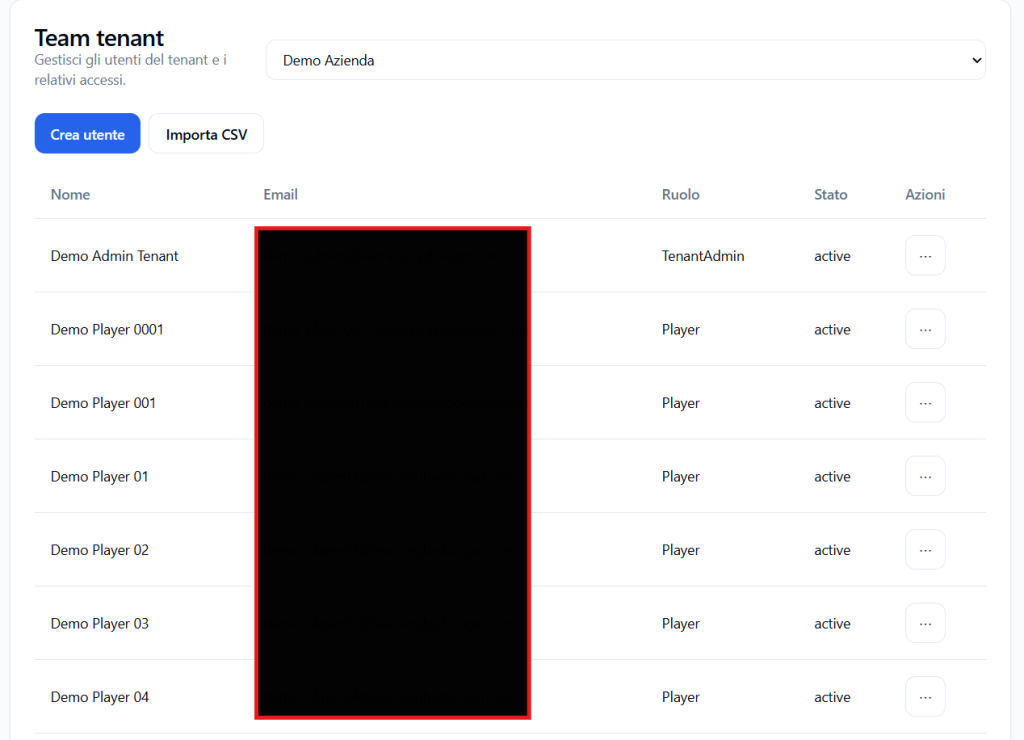
The table shows users already present in the tenant.
The main columns are:
Name #
Shows the user’s name.
Examples:
- Demo Admin Tenant
- Demo Player 001
- Demo Player 01
- Demo Player 02
Email #
Shows the email address associated with the user.
The email is used to access the platform and to receive communications, such as the password setup or reset email.
Role #
Shows the role assigned to the user.
Examples:
- TenantAdmin
- Player
The role determines which features the user can use within the platform.
A TenantAdmin can manage tenant configurations and users.
A Player can access the simulations that have been assigned to them.
Status #
Shows the user’s status.
Example:
active
The active status indicates that the user is active and can access the platform, if they have the correct credentials.
Actions #
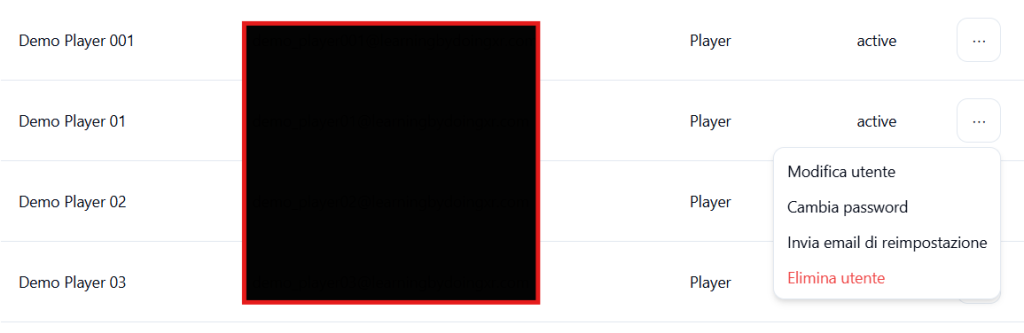
The Actions column contains the three-dot menu.
From this menu you can manage the individual user.
The available actions are:
- Edit user
- Change password
- Send reset email
- Delete user
Create a new user #
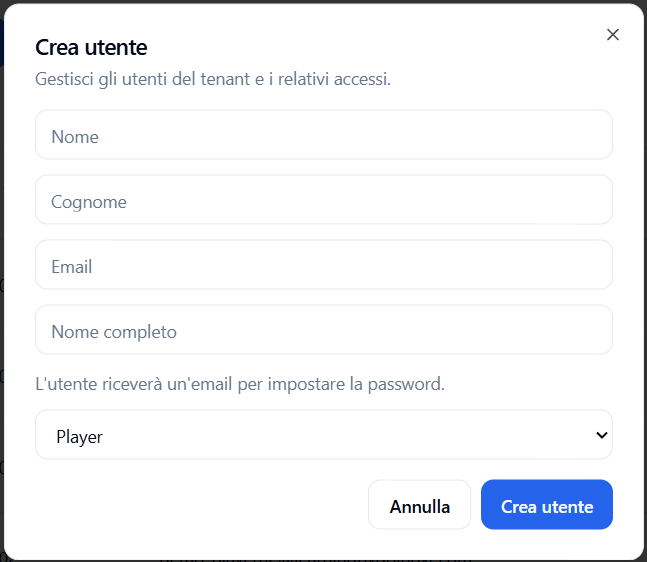
To create a new user, click the Create user button.
A creation window opens with fields to fill in.
Name #
Enter the user’s first name.
Example:
Mario
Last name #
Enter the user’s last name.
Example:
Rossi
Email #
Enter the user’s email address.
The email must be correct, because the user will receive a message to set the password.
Full name #
Enter the user’s full name.
Example:
Mario Rossi
This field helps identify the user in lists and management areas.
Role #
Select the role to assign to the user.
In the example shown, the selected role is:
Player
The Player role is intended for users who need to access assigned simulations.
Depending on the platform configuration and available permissions, other roles may also be present.
Email to set the password #
After creating the user, the system sends an email to set the password.
This means that the Tenant Admin does not necessarily have to manually communicate an initial password.
The user will receive instructions via email and will be able to complete the activation of their access.
Confirm creation #
After filling in the required fields, click Create user.
The system creates the user in the selected tenant.
If you want to close the window without creating the user, click Cancel.
Import users via CSV #
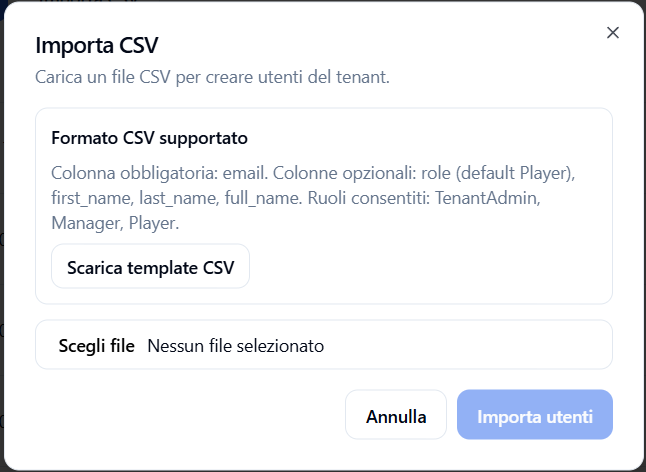
The Import CSV button allows you to import multiple users through a CSV file.
This function is useful when you need to create many Players at the same time.
Before importing a CSV, it is advisable to verify that the file contains consistent data, such as:
- name;
- last name;
- email;
- role, if required by the expected format.
For simplicity you can download the example .csv file to use as a template for creating users.
After import, users are added to the tenant and will be able to receive access instructions according to the expected configuration.
Import users via CSV #
The Import CSV button allows you to start a bulk import of users for the tenant.
This function is useful when you need to create multiple users at the same time, for example a group of Players to enable for simulations.
Clicking Import CSV opens a window dedicated to import.
CSV file upload #
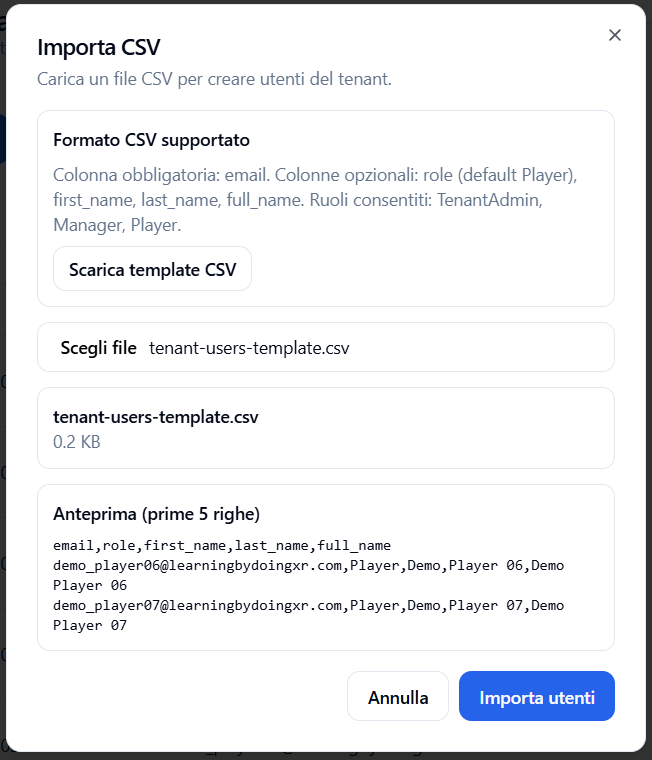
Clicking Choose File the system will allow you to select the .csv file from local.
File Name and Size #
In the Total rows field, indicate the total number of rows present in the CSV file.
Preview (first 5 rows) #
After uploading the .csv file, the system shows the first 5 rows to allow the Tenant Admin to check if the file format and information are correct.
This data helps verify that the information about to be imported is consistent with the expected content of the file.
Import Users #
After filling in the required fields, click Import Users.
The system starts the process of importing users into the tenant.

Cancel #
Click Cancel to close the window without starting the import.
Best practices for CSV import #
Before starting the import, verify that:
- the CSV file is in the format expected by the platform;
- email addresses are correct;
- there are no duplicates;
- the number of rows is consistent with the users to be created;
- the tenant still has availability with respect to the maximum limit of assigned users.
Edit a user #
To edit a user:
- locate the user in the table;
- click the three-dot menu;
- select Edit user.
This function allows you to update user information, such as first name, last name, full name, or other available data.
Change a user’s password #
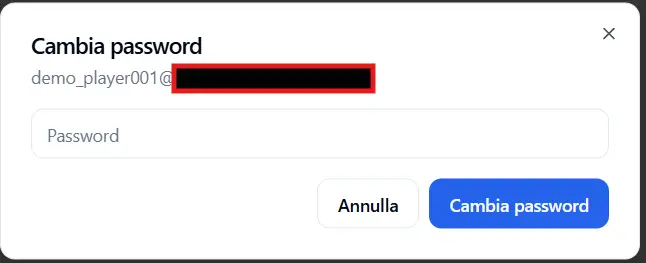
The Change password action allows the Tenant Admin to set a new password for a tenant user.
To access this function:
- locate the user in the table;
- click the three-dot menu in the Actions column;
- select Change password.
A window dedicated to password change opens.
Selected user #
In the upper part of the window, the email address of the user whose password is being changed is shown.
This allows you to verify that you are working on the correct user.
Password #
In the Password field, enter the new password to assign to the user.
The password must comply with the security rules required by the platform.
Change password #
After entering the new password, click Change password.
The system updates the user’s password.
From that moment, the user will be able to access using the new password set.
Cancel #
Click Cancel to close the window without changing the password.
When to use password change #
This function is useful when:
- the user cannot access;
- it is necessary to set a new password manually;
- the email reset has not been completed;
- the Tenant Admin must directly assist a Player or another tenant user.
Security note #
Password change must be used with care.
It is advisable to communicate the new password to the user through a secure channel and invite the user to change it at first access, if required by internal policies.
Send reset email #
The Send reset email action allows you to send the user an email to reset the password.
It is useful when the user has forgotten the password or has not correctly completed the first access.
The user will receive a message with instructions to set a new password.
Delete a user #
The Delete user action allows you to remove the user from the tenant.
This action must be used with care, because it can prevent the user from accessing the platform and assigned simulations.
Before deleting a user, verify that:
- they no longer need to access simulations;
- they are not involved in activities still in progress;
- the deletion is consistent with the organization’s internal policies.
User limits #
The maximum number of users that can be created depends on the resources assigned to the tenant.
You can check the number of available users in the Resources and Limits section.
When the user limit is reached, it may not be possible to create new users until capacity is increased or until users that are no longer needed are removed.
Best practices #
To properly manage tenant users, it is advisable to:
- use correct and active emails;
- assign the correct role to each user;
- create as Players only users who need to perform simulations;
- use CSV import when you need to load many users;
- send the reset email if a user cannot access;
- delete users only when they no longer need to use the platform;
- periodically check the number of users created against the tenant limit.
Final result #
The Tenant team section allows the Tenant Admin to administer tenant user access.
From here you can create new Players, manage existing users, send password resets, and delete access that is no longer needed.
Proper user management allows you to keep the tenant organized, secure, and consistent with the simulations actually assigned to participants.


