
What this section is for #
The Settings section allows the Player to view their account details and update certain personal information.
From this page, the Player can:
- view their account data;
- check the role associated with the profile;
- update first name, last name, and full name;
- change the password;
- choose the preferred interface language.
This section concerns the Player’s personal profile and does not modify the assigned simulations.
Account #
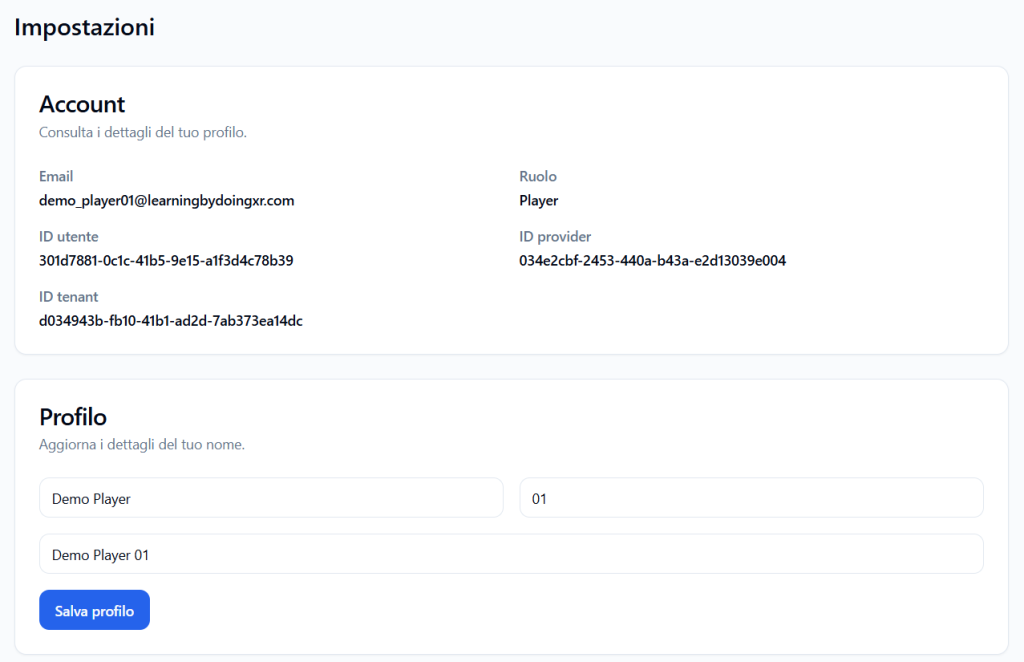
The Account section shows the main information of the account with which the Player has logged in.
This part is primarily informative.
Email #
It shows the email address associated with the account.
Example:
demo_player01@learningbydoingxr.com
The email is used to access the platform and for any system communications.
Normally, the Player does not directly modify this field.
Role #
Shows the role assigned to the user.
Example:
Player
The Player role allows access to assigned simulations, starting available experiences, and consulting one’s reports.
User ID #
Shows the user’s technical identifier.
This value can be useful in case of technical assistance, but is not necessary for daily use of the platform.
Provider ID #
Shows the technical identifier of the Provider linked to the tenant.
It is technical data used by the platform to correctly associate the account with the organizational context.
Tenant ID #
Shows the technical identifier of the tenant to which the Player belongs.
This value is also primarily useful for technical support or administrative checks.
Profile #
The Profile section allows the Player to update their name details.
The available fields are:
- name;
- last name;
- full name.
Example:
- First Name: Demo Player
- Last Name: 01
- Full Name: Demo Player 01
After modifying the data, click on Save profile.
The changes update the name displayed in the Player’s account.
Password #
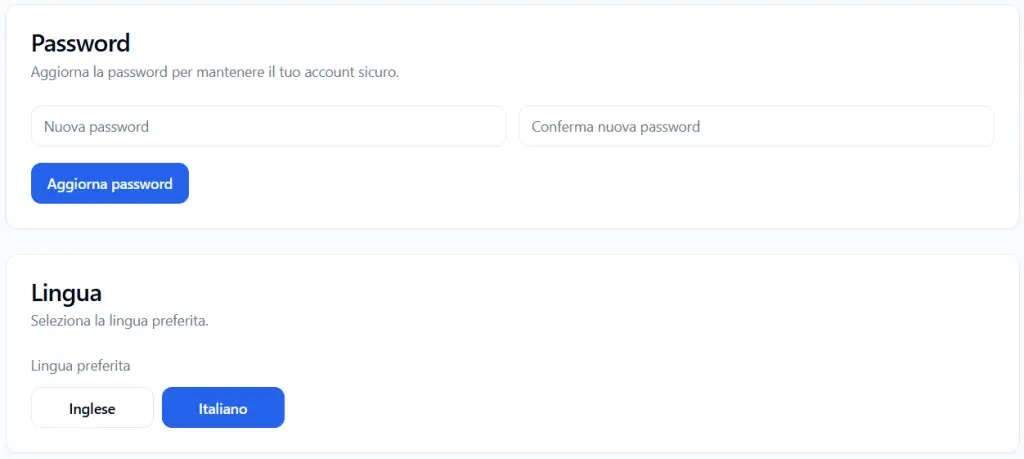
The Password section allows the Player to update their login password.
To change the password:
- enter the new password in the New password field;
- re-enter the same password in the Confirm new password field;
- click on Update password.
The confirmation serves to avoid typing errors.
It is advisable to choose a secure password, not used in other services and difficult to guess.
Language #
The Language section allows the Player to choose the preferred interface language.
The available options are:
- English
- Italian
The selected language modifies the platform’s interface texts.
Important: this setting concerns the Player’s interface language, not necessarily the language spoken during a simulation.
The simulation language is configured by the Tenant Admin when creating access to the simulation.
Difference between interface language and simulation language #
The language chosen in Settings controls the language of the platform’s menus, pages, and texts.
The simulation language instead controls the language used by the avatar during the experience.
Example:
- the Player can use the platform in Italian;
- an assigned simulation can take place in English;
- another simulation can take place in Italian.
The two settings are independent.
What the Player can modify #
The Player can modify:
- name;
- last name;
- full name;
- password;
- preferred interface language.
The Player cannot directly modify:
- account email;
- role;
- User ID;
- Provider ID;
- Tenant ID;
- assigned simulations;
- tenant limits or permissions.
This information is managed by the Tenant Admin, the Provider, or the system.
Best practices #
To correctly manage settings, it is advisable to:
- keep the profile name updated;
- use a secure password;
- update the password if you suspect it has been shared or compromised;
- choose the most comfortable language for using the platform;
- contact the Tenant Admin if the email or role is incorrect;
- not share your credentials with other users.
Final result #
The Settings section allows the Player to manage their personal profile simply and securely.
From here, the Player can update name data, change the password, choose the interface language, and consult their account’s technical information.


