
What this section is for #
The Plan and Resources section allows the Provider to view the active membership package, check the resources included in the plan, and monitor how these resources are used or distributed to tenants.
From this page, the Provider can monitor:
- active package;
- subscription status;
- current billing period;
- monthly price;
- cost of extra minutes;
- minutes included per month;
- minutes already used;
- accrued overage minutes;
- estimated overage cost;
- maximum available users;
- maximum available tenants;
- maximum active runtimes;
- available Web and VR slots;
- importable global simulations;
- White Label Provider and Tenant;
- resource allocations to tenants;
- currently occupied simultaneous sessions.
This section therefore offers a general administrative view of the Provider’s plan and resource consumption.
Active package #
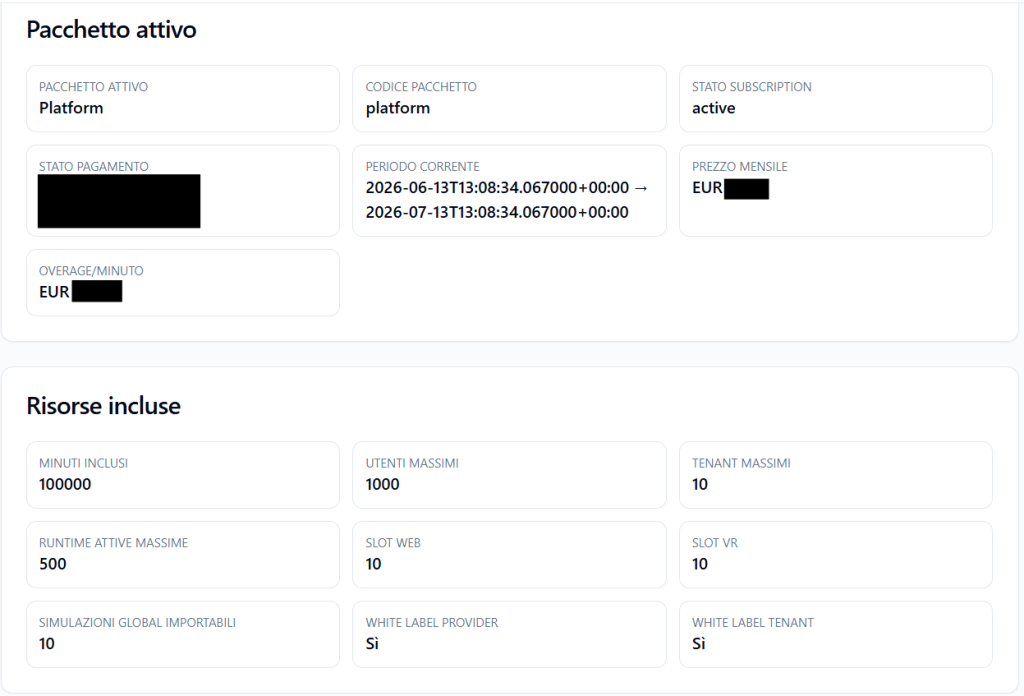
The Active package section shows the main information regarding the membership currently active for the Provider.
Active package #
Indicates the name of the plan currently associated with the Provider.
Example:
Platform
The plan determines which resources are available and which features are included.
Package code #
Shows the technical code of the package.
Example:
platform
This code internally identifies the membership plan.
Subscription status #
Shows the status of the subscription.
Example:
active
An active status indicates that the plan is active and usable.
Payment status #
Shows the payment status associated with the subscription.
This value is useful for understanding if the plan is regularly active from an administrative and commercial point of view.
Current period #
Shows the time interval of the current billing cycle.
Example:
2026-06-13 → 2026-07-13
This period is important because some resources, such as included minutes, are calculated on a monthly basis.
Monthly price #
Indicates the monthly price of the plan.
Overage/minute #
Indicates the expected cost for each extra minute consumed beyond the included quota, if overage is active or provided for by the plan.
This value is used to estimate the cost of minutes exceeding the included monthly quota.
Included resources #
The Included resources section shows the maximums provided by the Provider’s membership plan.
These values represent the maximum capacity available to the Provider and the tenants they manage.
Included minutes #
Indicates the number of monthly minutes included in the plan.
Example:
100000
These minutes represent the monthly quota available for using simulations.
Minutes are consumed by runtime sessions carried out by Players and by internal tests using the real-time infrastructure.
Maximum users #
Indicates the maximum number of users that the Provider can distribute overall among its tenants.
Example:
1000
This limit includes users created in the tenants, such as Players, Tenant Admins, or other roles provided by the platform.
Maximum tenants #
Indicates the maximum number of tenants that the Provider can create.
Example:
10
A tenant can represent a client, a department, a business unit, a branch, or a department managed by the Provider.
Maximum active runtimes #
Indicates the maximum number of active runtimes that can be distributed among tenants.
Example:
500
A runtime is an operational access to a simulation.
This value does not indicate how many sessions can be carried out simultaneously, but how many runtime simulations can be active in the system.
Web Slots #
Indicates the maximum number of simultaneous Web sessions available to the Provider.
Example:
10
This means that the Provider can support up to 10 simultaneous Web sessions, according to the distribution between shared slots and any slots reserved for tenants.
VR Slots #
Indicates the maximum number of simultaneous VR sessions available to the Provider.
Example:
10
VR slots are separate from Web slots. A Web session consumes Web slots, while a VR session consumes VR slots.
Importable global simulations #
Indicates how many global simulations the Provider can import from the platform’s global catalog.
Example:
10
These are complete simulations, already structured with Communication Skills, Observation Grids, Persona Avatars, and narrative.
White Label Provider #
Indicates whether the plan allows the Provider to configure its own brand.
Example:
Yes
If active, the Provider can set the name and logo of its environment.
White Label Tenant #
Indicates whether the plan also allows tenants to customize their own brand, if the Provider enables this possibility.
Example:
Yes
When active, the Provider can decide whether to allow Tenant Admins to configure their tenant’s name and logo.
Minute consumption for the month #

The Minute consumption for the month section shows the monthly use of minutes in the current period.
This section is important because minutes are a monthly resource, unlike other limits which are overall plan maximums.
Included minutes #
Shows the monthly quota of minutes included in the plan.
Example:
100000
Simulation minutes used #
Shows how many minutes have already been consumed during the current month.
Example:
11
These minutes derive from the runtime simulations performed and from internal tests using real-time sessions.
Accrued overage minutes #
Shows how many extra minutes have been consumed beyond the included quota.
Example:
0
If the value is 0, it means that the Provider has not yet exceeded the included monthly quota.
Estimated overage cost #
Shows an estimate of the cost of the extra minutes accrued.
Example:
EUR 0.00
The cost is calculated based on the overage/minute price provided by the plan.
Tenant overage #
Tenants can also have extra consumption agreed upon with the Provider.
The Provider can configure for each tenant:
- assigned monthly minutes;
- overage allowed or blocked;
- maximum monthly limit with overage.
This allows the Provider to decide if a tenant can exceed its assigned monthly quota and up to what threshold.
Example:
A tenant receives:
- 6000 assigned monthly minutes;
- overage allowed;
- maximum monthly limit with overage: 7000.
In this case, the tenant can exceed 6000 minutes but not go beyond 7000 minutes in the monthly period.
Users, Simulations, and Simultaneous Sessions #
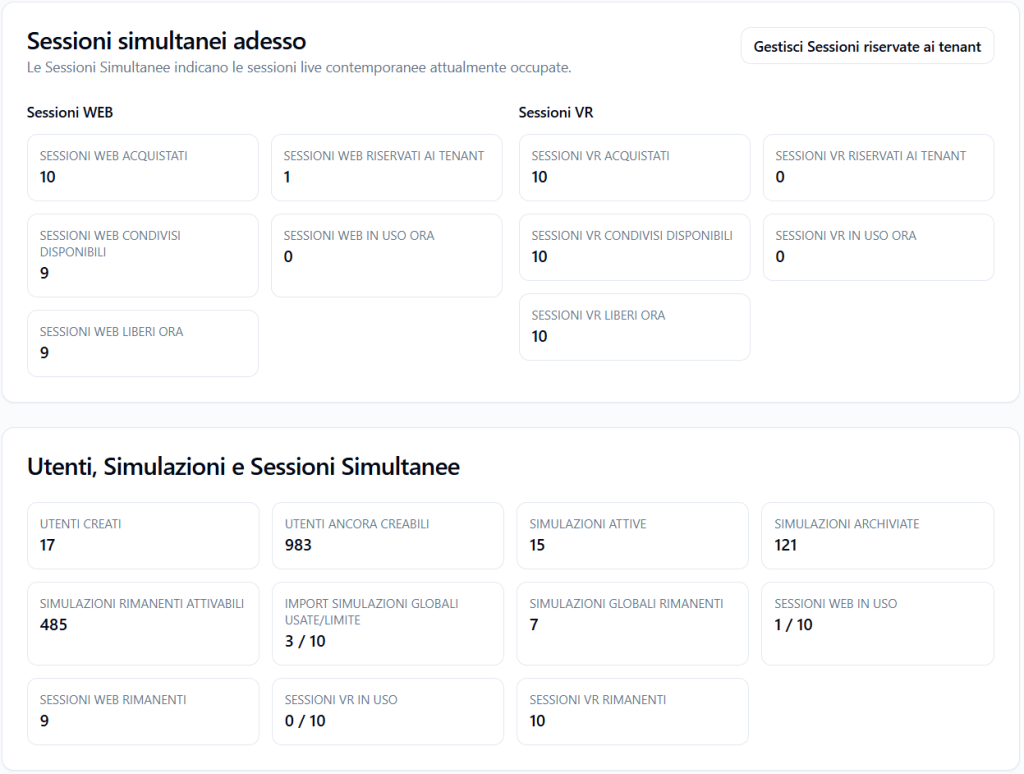
The Users, Simulations, and Simultaneous Sessions section shows an operational view of the overall use of resources.
It can include values such as:
- users created;
- users still creatable;
- active simulations;
- archived simulations;
- remaining activatable simulations;
- global simulation imports used/limit;
- remaining global simulations;
- Web sessions in use;
- remaining Web sessions;
- VR sessions in use;
- remaining VR sessions.
Created users #
Indicates how many users have already been created overall in the Provider’s tenants.
Users still creatable #
Indicates how many users can still be created before reaching the plan limit.
Active simulations #
Indicates how many runtimes or operational simulations are active.
Archived simulations #
Indicates how many simulations or runtimes have been archived.
Remaining activatable simulations #
Indicates how many additional runtime simulations can still be activated compared to the available limit.
Global simulation imports used/limit #
Indicates how many global simulations have already been imported compared to the maximum allowed by the plan.
Example:
3 / 10
This means that the Provider has imported 3 global simulations out of 10 available.
Remaining global simulations #
Indicates how many global simulations can still be imported.
Web sessions in use #
Indicates how many Web sessions are currently in progress compared to the available limit.
Example:
1 / 10
Remaining Web sessions #
Indicates how many Web sessions can still be started at that moment.
VR sessions in use #
Indicates how many VR sessions are currently in progress compared to the available limit.
Example:
0 / 10
Remaining VR sessions #
Indicates how many VR sessions can still be started at that moment.
Simultaneous sessions now #
The Simultaneous sessions now section shows the Web and VR capacity currently occupied or available.
This section describes the real-time or near real-time use of simultaneous connection slots.
Web Sessions #
For the Web channel, the following can be shown:
- purchased Web sessions;
- Web sessions reserved for tenants;
- available shared Web sessions;
- Web sessions in use now;
- Web sessions free now.
VR Sessions #
For the VR channel, the following can be shown:
- purchased VR sessions;
- VR sessions reserved for tenants;
- available shared VR sessions;
- VR sessions in use now;
- VR sessions free now.
Difference between active runtimes and simultaneous sessions #
It is important to distinguish between active runtimes and simultaneous sessions.
Active runtimes #
These are the configured accesses to simulations.
A runtime can be active even if no Player is using it at that moment.
Simultaneous sessions #
These are the sessions actually in progress at the same time.
Example:
A Provider can have 500 maximum active runtimes, but only 10 simultaneous Web sessions.
This means that many simulations can be available, but only a certain number of Players can use them simultaneously, based on the available Web or VR slots.
Manage sessions reserved for tenants #
The Manage sessions reserved for tenants button leads to the management of reserved capacity.
From there, the Provider can decide whether to assign guaranteed slots to specific tenants.
By default, tenants use the Provider’s shared slots.
If a tenant needs guaranteed capacity, the Provider can reserve dedicated Web or VR slots for them in the Capacity section.
Allocations Overview #
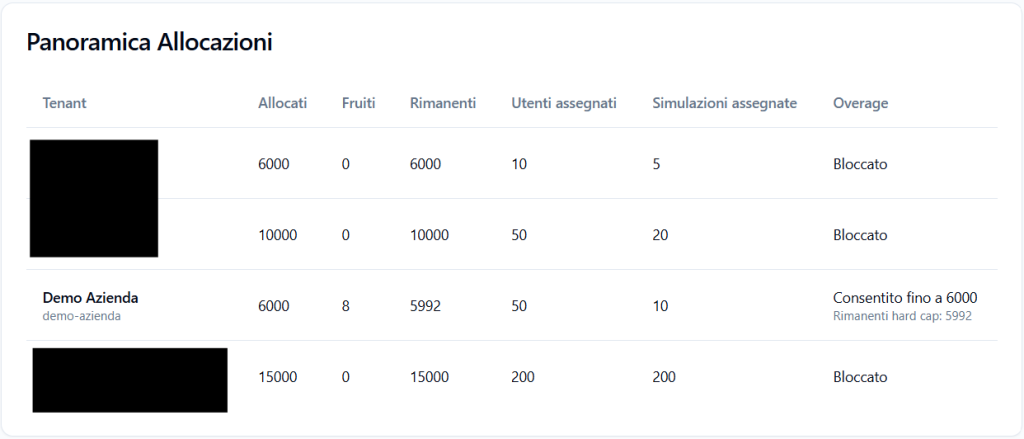
The Allocations Overview section shows how monthly and operational resources have been distributed among tenants.
The table may include:
- tenant;
- allocated minutes;
- used minutes;
- remaining minutes;
- assigned users;
- assigned simulations;
- overage status.
Allocated #
Indicates the monthly minutes assigned to the tenant.
Used #
Indicates how many minutes the tenant has already consumed in the current period.
Remaining #
Indicates how many minutes remain available to the tenant.
Assigned users #
Indicates how many users have been assigned to the tenant.
Assigned simulations #
Indicates how many runtimes or activatable simulations have been assigned to the tenant.
Overage #
Indicates if the tenant can exceed the assigned quota.
Examples:
- Blocked
- Allowed up to 6000
- Remaining hard cap: 5992
If overage is blocked, the tenant cannot exceed the assigned monthly quota.
If it is allowed, the tenant can consume beyond the base quota up to the configured maximum limit.
Maximum resources and monthly resources #
In the Plan and Resources section, two types of resources coexist.
Maximum resources #
These are overall limits of the Provider plan.
Examples:
- maximum users;
- maximum tenants;
- maximum active runtimes;
- Web slots;
- VR slots;
- importable global simulations;
- White Label Provider;
- White Label Tenant.
These resources define the maximum available capacity.
Monthly resources #
These are resources that refer to the current period.
Examples:
- included minutes;
- used minutes;
- accrued overage minutes;
- estimated overage cost.
Minutes are renewed or calculated based on the plan’s monthly cycle.
How to read the section correctly #
This page should be read as a control view of the plan and usage.
The Provider can use it to answer questions such as:
- How many minutes are included in the plan?
- How many minutes have already been consumed this month?
- How many extra minutes have been accrued?
- How many more users can I create?
- How many more tenants can I create?
- How many more runtimes can I activate?
- How many more global simulations can I import?
- How many Web or VR sessions are in use now?
- Which tenants are consuming the most resources?
- Which tenants have active or blocked overage?
Practical example #
A Provider has a plan with:
- 100,000 included minutes;
- 1,000 maximum users;
- 10 maximum tenants;
- 500 maximum active runtimes;
- 10 Web slots;
- 10 VR slots;
- 10 importable global simulations.
During the month:
- they have consumed 11 minutes;
- they have not accrued overage;
- they have created 17 users;
- they have imported 3 global simulations;
- they have 1 Web session in use;
- they have 0 VR sessions in use.
In this case, the Provider still has ample resource availability and is not generating overage costs.
Best practices #
To correctly manage Plan and Resources, it is advisable to:
- periodically check the minute consumption for the month;
- verify if overage minutes have been accrued;
- monitor tenant allocations;
- avoid assigning tenants more resources than they actually need;
- use tenant overage only when agreed upon;
- check the number of global simulations imported compared to the limit;
- verify Web and VR slots if many Players use simulations at the same time;
- always distinguish between active runtimes and simultaneous sessions;
- use the Capacity section to manage reserved or shared slots;
- upgrade the plan if tenant growth exceeds available limits.
Final result #
The Plan and Resources section allows the Provider to monitor their membership plan and actual resource usage.
Some resources are plan maximums, such as users, tenants, runtimes, importable global simulations, and Web/VR slots.
Other resources are monthly, such as included minutes, used minutes, accrued overage, and estimated cost of extra minutes.
The Provider can also check how resources are distributed among tenants and see if tenants have blocked or allowed overage.
This section helps keep capacity, consumption, and costs of the entire Provider ecosystem under control.


